
Where are my reports in Bread & Butter, and how do I run or schedule them?
Bread & Butter's reports used to live only in your AI assistant. Now they have a page of their own in Bread & Butter: one place to see every report, decide how often each one is built for you, build one on the spot, and open any report that has been run on your account.
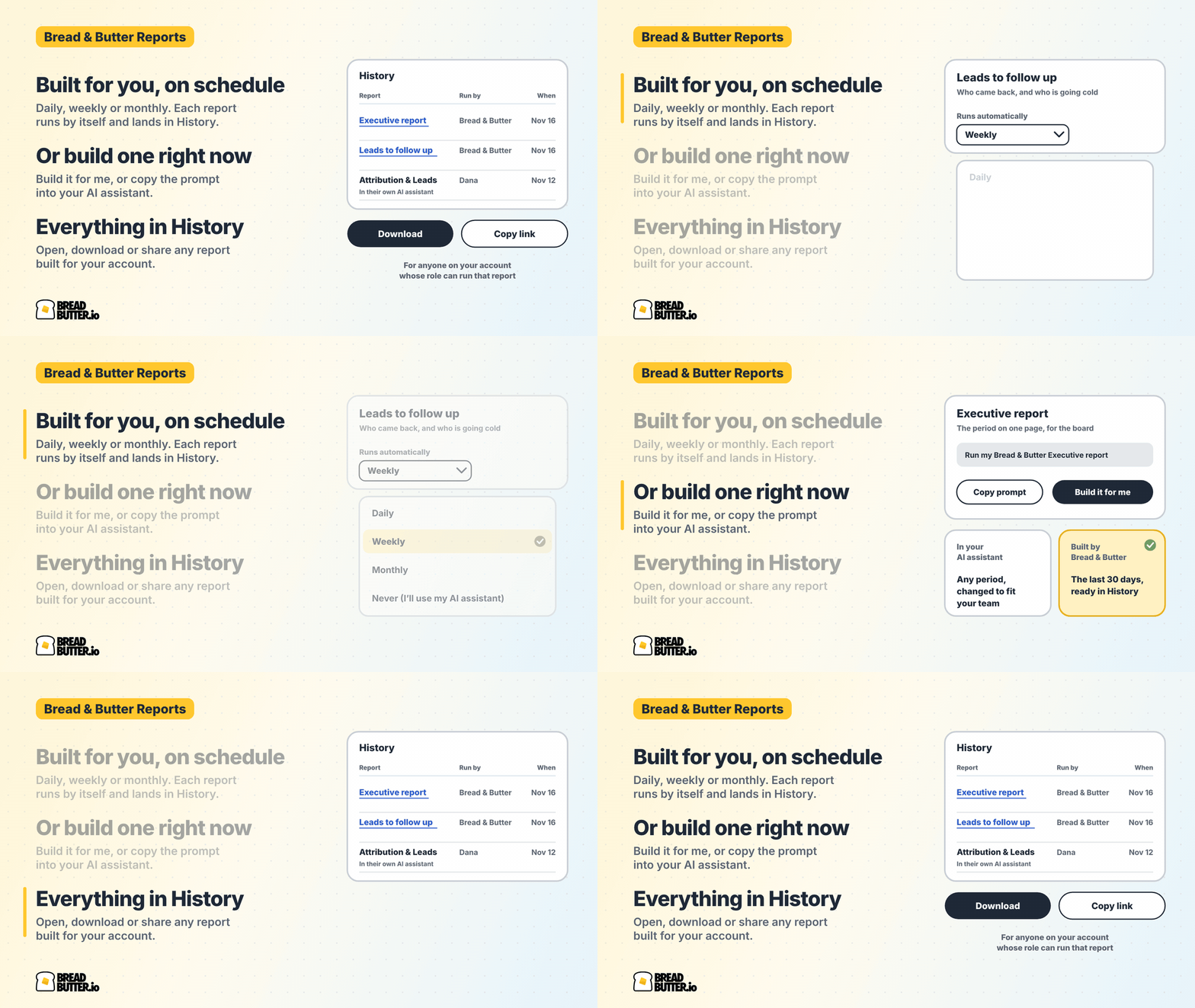
In short: Reports is in the left menu, with two tabs. All reports lists every report your role can run, in three groups: Sales reports, Marketing reports and On-demand reports. On each one you choose how often Bread & Butter builds it for you (Daily, Weekly, Monthly or Never), click Build it for me to get it now, or copy its prompt into your AI assistant. History lists every report run on your account, newest first, and the ones Bread & Butter built open there, ready to download or share with your team. How often a report can run depends on your plan, and each run uses credits.
Where to find it
Click Reports in the left menu, under Attribution. The page opens on All reports; History is the second tab. You only ever see the reports your role can run.
Three ways to get a report
- Have it built for you on a schedule. Each report has a Runs automatically setting. Bread & Butter builds the report at that pace, and each one lands in History.
- Build it now. Build it for me builds the report on the spot, for the last 30 days.
- Run it in your AI assistant. Copy prompt gives you the exact words to paste into your assistant, where you can ask for any period and change the report to fit your team. This is part of the Pro Plus plan.
The All reports tab
At the top, a box about your AI assistant. On Pro Plus, it shows the three steps to connect one: copy the server address, add it to your assistant, paste a prompt. Once you're connected, it says so. On other plans, it offers the upgrade to Pro Plus. See Bread & Butter MCP server connections.
Run all my Bread & Butter reports has its own card. The prompt covers the last 30 days unless you name another period, for example "Run all my Bread & Butter reports for last week."
The reports come in three groups:
- Sales reports, to help you find, follow up and close more leads: Leads we found for you and Leads to follow up.
- Marketing reports, to understand performance, campaigns and attribution: from the Executive report and the Report for Your Boss to Attribution & Leads, Ads Spend and the Health check.
- On-demand reports, about one person or one company: the Intelligence Brief and Company Intelligence.
Owners, Administrators and Marketers see all three groups. Sales sees the Sales reports and the On-demand reports.
Each report has a card with its name and what it's for, its Runs automatically setting, its prompt with Copy prompt, and Build it for me. The card shows what a run uses in credits, both in your assistant and when Bread & Butter builds it.
How often each report runs
Open the Runs automatically setting on a report and choose Daily, Weekly, Monthly or Never (I'll use my AI assistant). Sales reports start on Weekly and Marketing reports on Monthly.
What you can choose depends on your plan:
| Plan | Sales reports | Marketing reports |
|---|---|---|
| Pro, and during the trial | Weekly, Monthly or Never | Monthly or Never |
| Pro Plus | Daily, Weekly, Monthly or Never | Daily, Weekly, Monthly or Never |
- The setting belongs to the account, not to you. Change it and it changes for everyone on the account.
- Owners, Administrators and Marketers can change it. Sales can see the setting but not change it.
- Choosing a pace your plan doesn't include opens the upgrade to Pro Plus. If you aren't the person who pays for the account, it opens a request to that person instead.
- Each run uses credits. If your balance is too low when a run is due, the run is skipped and noted in History. See How do Credits work across storage, syncing, and profile enrichment?
- During the trial, your first full set of reports is built on day 26.
The On-demand reports have no setting, because each one is about a person or a company you name.
The emails are set somewhere else. How often you get the Roundup and the Reports email is your own choice, under your profile, on the Notifications tab. The Reports email is a reminder that your reports are ready in History. See Which Bread & Butter emails will I get, and how do I change them?
Build it for me
Click Build it for me on any Sales or Marketing report and Bread & Butter builds it for the last 30 days. It appears in History when it's done, and it uses credits like a scheduled run. You don't need an AI assistant for this.
Run it in your AI assistant
On Pro Plus, Copy prompt copies the report's prompt, ready to paste into your assistant. There, you can ask for a different period, a single campaign or one region, and change the report to fit what your team wants to see. For the On-demand reports, type the person's name or email address, or the company's name or website, into the prompt before you copy it.
Use the most capable model your assistant offers. See Which AI model should I use to run my Bread & Butter reports? To have your assistant run a report on its own schedule, see Run your Bread & Butter reports on a schedule.
On other plans, Copy prompt opens the upgrade to Pro Plus.
The History tab
Every report run on your account, newest first, with four columns: Report, Period, Run by and When.
- Reports Bread & Butter built for you show "Bread & Butter" under Run by, and the report name is a link. The report opens full page, where you can print it, Download it or Copy link. Download saves the report as a file, to keep or to send to someone who isn't on your account. A copied link opens for anyone on your account whose role can run that report, and for nobody else.
- Reports someone ran in their own AI assistant are listed too, with who ran them and when, so you can see what your team is looking at. Those reports live in that person's assistant, so there's nothing to open here.
- A run that was skipped because the balance was too low is noted here.
As everywhere on the page, you only see the reports your role can run.
On the Free plan
On the Free plan, and after a trial ends, the page shows every report and what it's for, with a line above them: "Upgrade to Pro to have Bread & Butter build these reports for you on a schedule." The Runs automatically setting isn't shown, and Build it for me opens the upgrade.
Related
- Bread & Butter MCP server connections
- Run your Bread & Butter reports on a schedule
- Which AI model should I use to run my Bread & Butter reports?
- Which Bread & Butter emails will I get, and how do I change them?
- How do Credits work across storage, syncing, and profile enrichment?
- What are the different team roles, and what do they have access to?
- Executive report
- Leads to follow up report