
What is Auto-Gate, and how does it capture more leads for you?
Most marketers know they should be capturing more of their visitors. Few know which pages to ask on, which tool to use or when to ask, and almost nobody has the time to test it. Auto-Gate does all three for you.
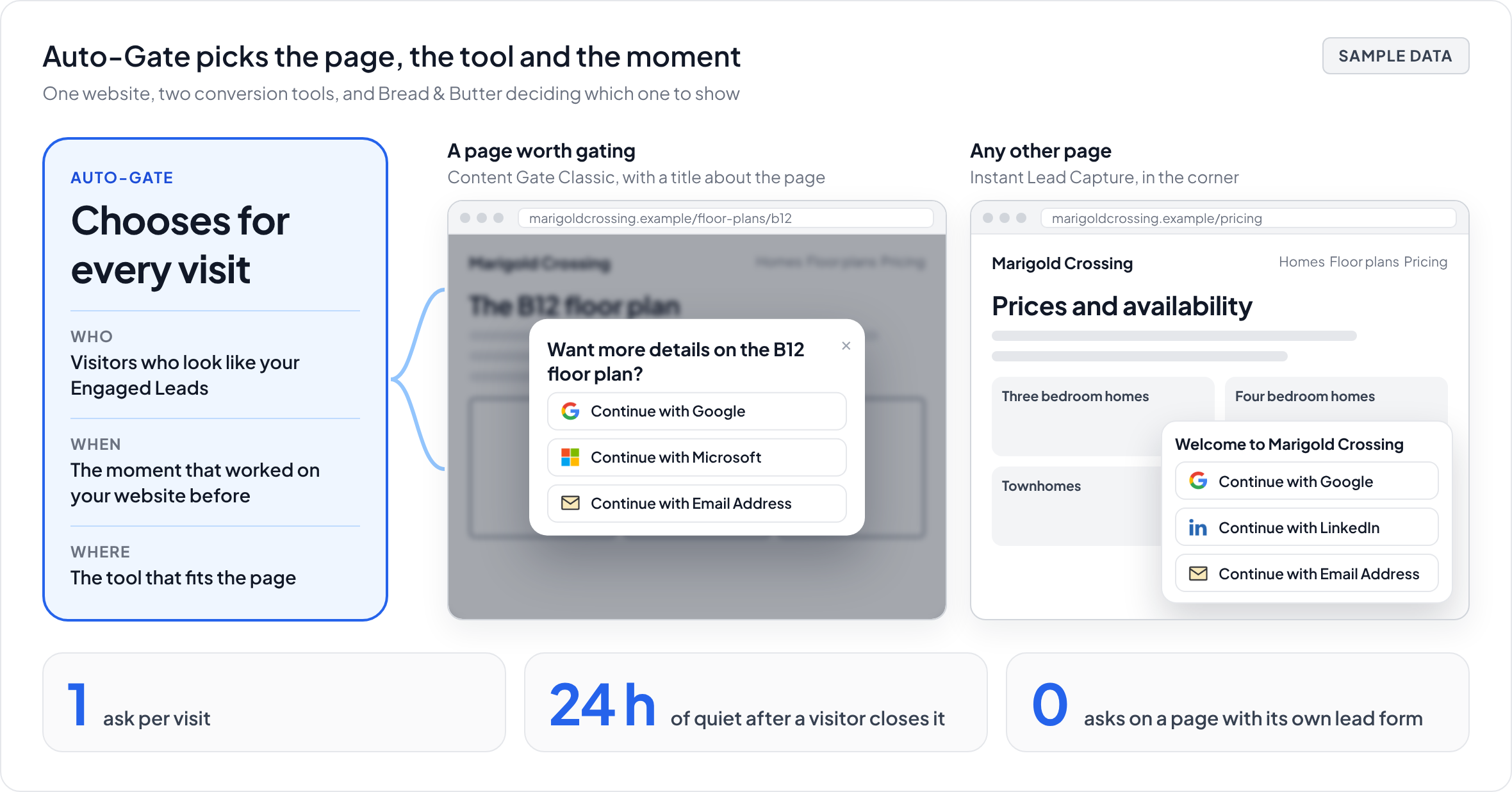
In short: Auto-Gate is part of Lead Gen Autopilot. Switch it on and Bread & Butter decides for you, visit by visit, whether to ask, where and when, using two tools. On the pages worth gating, such as guides, tools and pages that offer a download, it shows a content gate with a title written about that page. Everywhere else, including your home page and pricing, it can show Instant Lead Capture, the "Continue with" widget in the corner, which never covers the page. It learns from your own website who is ready to be asked and the right moment, asks only on some visits so it can measure the leads it adds, and never asks more than once a visit. Visitors who say yes continue with an account they already use, or a verified email address, and become Engaged Leads. There's no code to add: it runs from the tracking script you already installed, on any website. It never gates your home page, pricing or the other pages people need open, and it never asks at all on a page with its own lead form. Reading your pages uses Bread & Butter credits.
What Auto-Gate does
Auto-Gate makes four decisions for you, and keeps making them as your website and your visitors change.
Which pages to gate. It reads your pages and picks the ones visitors would happily trade an email address for: original research, guides, playbooks, webinars, templates, tools and calculators, and pages that offer files to download, such as floor plans and brochures.
What to ask. For each gated page it writes the pop-up title, a question about the page's topic that the visitor would want to say yes to, such as "Want more details on the B12 floor plan?" or "Want to calculate your ROI?". You can change any title, and your version is kept.
Which tool to show. On a gated page, the content gate. Everywhere else, Instant Lead Capture.
Who to ask, and when. It learns from your own visitors which people go on to become Engaged Leads, and which pages, sections and moments have worked on your website before. Then it asks only them, only then.
The two tools it uses
The content gate, on the pages worth gating. A soft, dismissible pop-up with the title Auto-Gate wrote and the "Continue with" options you've enabled, such as Google, LinkedIn or a verified email address. One click and they're through. If they'd rather not, they close it and keep reading. On a page that offers a download, the title asks about the topic rather than promising the file, and the download itself stays open.
Instant Lead Capture, everywhere else. The "Continue with" widget in the corner of the screen. It doesn't cover the page or stop anyone scrolling, and it tucks away as the visitor reads on, so it can show on pages a pop-up never would, including your home page and pricing. See Instant Lead Capture (Most Effective).
How it chooses the pages
Auto-Gate only starts reading your pages once you switch it on. It reads every domain configured in your account, starting with the pages your visitors actually open, busiest first, and picks up new pages as they start getting traffic.
Every page ends up on one of two lists, each with its reason:
- Pages we'll gate, with the pop-up title Auto-Gate wrote and how many Focused visitors the page had this month.
- Pages we'll never gate, with the reason, such as "pricing page" or "has its own form".
You can move a page from one list to the other, except the pages below, which are always locked.
Never gated: your home page, pricing, product and feature pages, case studies, docs and support, careers, legal, account, checkout and thank-you pages. These are pages people need open, and a pop-up there costs you more than it earns. Instant Lead Capture can still show on them.
Never asked at all: any page with its own lead form, such as a contact, quote request or download form, gets neither tool. That page already asks, and a second ask splits the first. Use the Form Booster on those pages instead. A form that repeats across your whole website, such as a newsletter box in your footer or a "Get pricing" form in every page's sidebar, doesn't count.
Your own gates come first: any page with a gate you placed yourself is left alone.
How it decides who to ask, and when
There's no fixed timer, no fixed scroll depth and no fixed "second page". Every website is different, so Auto-Gate learns from yours.
It looks at who becomes an Engaged Lead on your website, how far into a visit they were and how long they'd spent on the page, and at the pages, sections and timing that worked before. On some websites people raise a hand on the first page they see; on others, only after a few. On one RV website, for example, a quiz section turned out to be both the best place to ask and the least intrusive. That's the kind of answer Auto-Gate looks for on its own, using Focused Score, return visits and how people move through your pages.
It doesn't ask everyone. It holds back a share of visits on purpose, so it can measure how many more leads it brings you than not asking at all.
A few rules always hold:
- One ask per visit. If a page could show either tool, the content gate goes first.
- A closed pop-up is respected. Once a visitor closes either tool, that page never asks them again, and nothing is shown to them anywhere on your website for at least 24 hours.
- Never again once they've raised a hand.
Turning it on
Open Lead Gen Autopilot in Settings and switch on Auto-Gate. You'll also find it on your Get Set Up page.
Auto-Gate is set per Account. If you manage several websites in Bread & Butter, each Account has its own switch, so you can turn it on for one website and leave it off for another.
While Auto-Gate is on, a Lead Gen Autopilot: On label shows in your dashboard, so everyone on your team knows it's running.
Switching it off stops both tools and stops reading pages. Switching it back on reads your website again.
Expect a few complaints, and weigh them against the leads
Some visitors want your content without giving anything in return, and a few of them will say so. A comment or an email about the pop-up is normal once Auto-Gate is running, and it doesn't mean something is broken.
Weigh it the way you would any lead capture: a small number of visitors who'd rather not be asked, against the leads you gain from everyone else who says yes. If one page draws more complaints than it's worth, move it to the never-gate list.
Where you see the results
- On the journey. Every time Auto-Gate asks, an Auto-Gate event is added to that visitor's journey, with the page, the tool and, for the content gate, the title they saw.
- In your leads. People who say yes become Engaged Leads like anyone else, each showing which tool they said yes to, and count in Leads we captured for you and in the Attribution Report.
- On your timeline. Switching Auto-Gate on or off is marked on your account timeline, so you can compare your Focused Ratio and Engaged Leads before and after.
Credits
Reading a page uses Bread & Butter credits. You're only charged for pages Auto-Gate actually reads. Pages that fail to load, pages on the never-gate list and repeat attempts are free, and a page read for both Auto-Gate and the Contact Us tool counts once. Reading stops if your credits run out. The current rates are in How do Credits work across storage, syncing, and profile enrichment?
You can still choose for yourself
Auto-Gate doesn't replace the tools you set up by hand. If you want a specific page gated your way, use Content Gate Classic, Preview or Secure, and Auto-Gate leaves that page alone. Every tool is listed in the Conversion tools overview.
Related
- What types of content gates do you offer, and when should I use them?
- What is the ideal type of content to gate behind a social login?
- What are the real benefits of content gating, and does it actually improve lead quality and quantity?
- What is Focused Score and how does it evaluate my traffic?
- How do Credits work across storage, syncing, and profile enrichment?