
Email Campaigns report
Who this is for: marketers who send newsletters, launch emails and nurture sequences, and digital agencies who report on a client's email marketing.
What you'll learn: what the Email Campaigns report shows, why it reads differently from your email tool's numbers, how to tag your emails so it can tell them apart, how to run it in your AI assistant, how to share it, and how to take it further with your own questions.
Your email tool tells you how many people opened and clicked. It can't tell you what they did once they reached your website: whether they read closely, came back, or raised their hand. And some of those clicks aren't people at all: email security tools open every link before the reader sees it. The Email Campaigns report starts at the click and follows it onto your website, so you can see which emails bring people who are ready to buy.
In short: The Email Campaigns report is a ready-made report your AI assistant builds from your Bread & Butter data, for any period you choose. It follows every visit that started with a click in one of your emails: how many visitors, how many read closely, how many became Engaged Leads and Won/Closed, by campaign and by email, month by month. It shows whether email finds new leads or brings back people you already had, what email visitors do after the click, and which campaigns are inflated by automated clicks. Every card explains what the chart says, why it matters and what to keep an eye on, and ends with a question to ask next. Owners, Administrators and Marketers can run it.
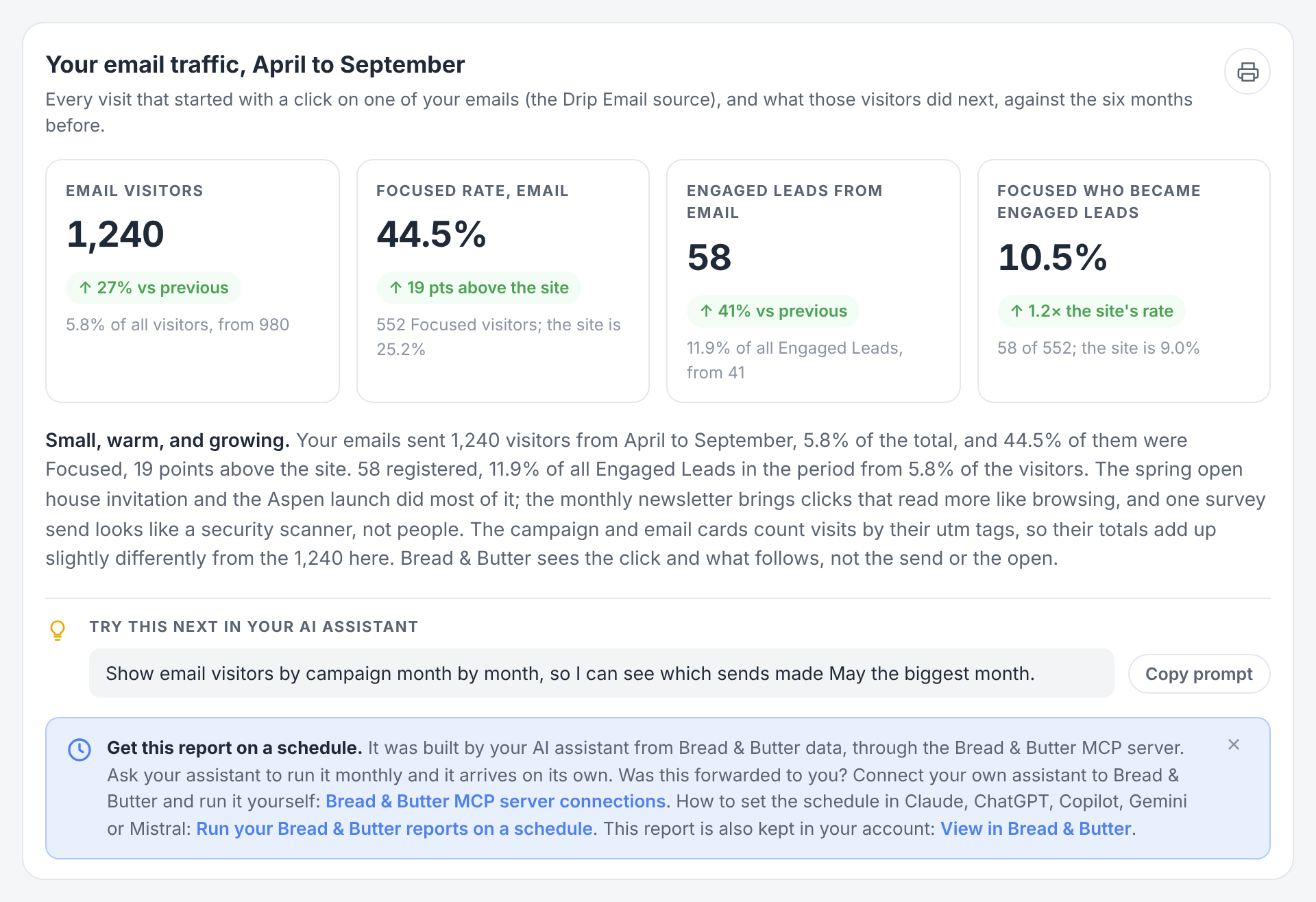
A sample report for a fictional business. Your report uses your own campaigns and emails.
What the report answers
Which emails bring buyers, not just clicks? Every campaign and every email is measured by the visitors who read closely and the people who raised their hand, not by clicks.
Does email find new leads, or bring people back? The report compares the leads whose first visit came from an email with the leads an email brought back to convert.
Which clicks aren't people? Campaigns with a lot of visitors and almost nobody reading are flagged as automated clicks, so they don't flatter your numbers.
What should the next send do differently? The report ends with up to three suggestions from your assistant, each with the result to expect.
What's in it
The report opens with your email traffic, at a glance: four figures against the period before. Email visitors, and their share of all visitors; the Focused Rate of email visitors against the website's; Engaged Leads from email, and their share of all Engaged Leads; and how many Focused email visitors became Engaged Leads, against the website's rate. A short paragraph says what kind of period it was.
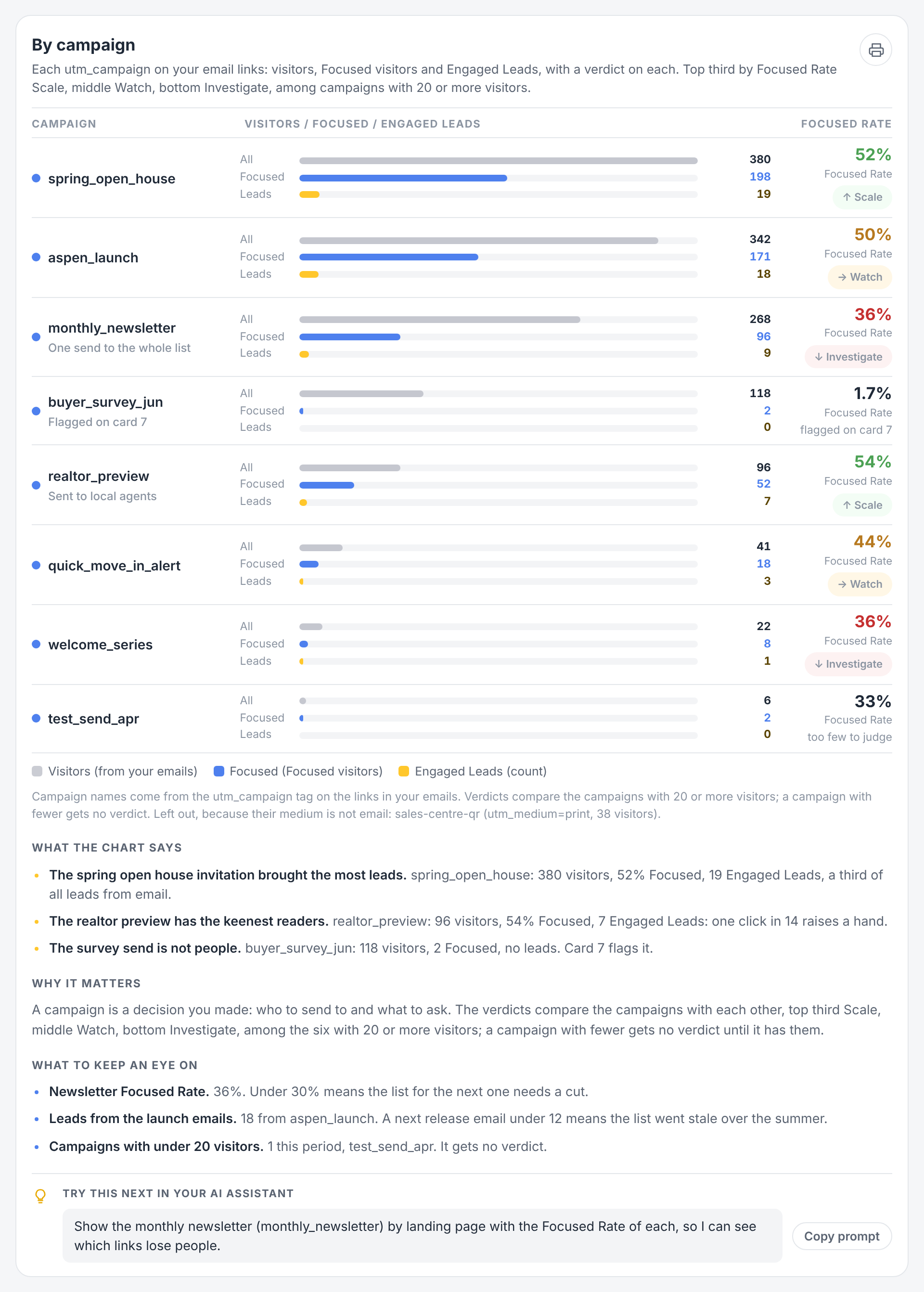
Then come the cards, each one on its own:
Email funnel. How email visitors became Focused visitors, Engaged Leads and Won/Closed.
By campaign. Each utm_campaign on your email links, with its visitors, Focused visitors and Engaged Leads, and a verdict. Campaigns with 20 or more visitors are ranked by Focused Rate: the top third get Scale, the middle Watch, the bottom Investigate. A campaign with fewer visitors gets no verdict until it has them. Links tagged with a medium other than email are left out and listed in a note.
Month by month. Email visitors and Engaged Leads from email each month, with email's share of all your Engaged Leads as a line, so you can see whether email is pulling more or less of the weight.
By email. Each email (utm_content ), the top 10 by visitors, with the same verdict rule. If your email tool fills utm_content with numbers, the card says so: give each email a name you can read.
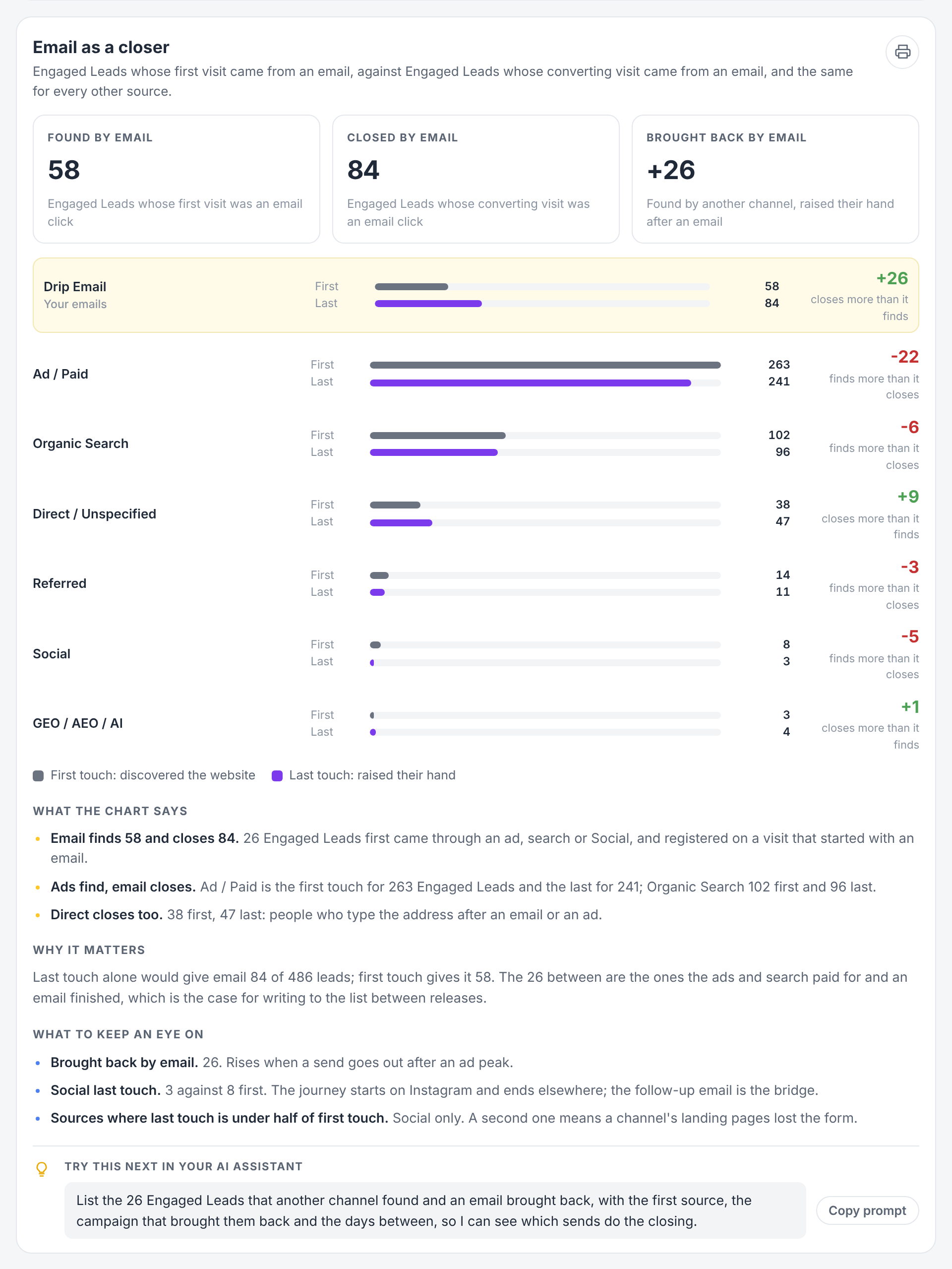
Email as a closer. The Engaged Leads whose first visit came from an email, against those whose converting visit came from an email, and the same for every other source. The difference is the people found somewhere else, by search or an ad, and brought back by an email to raise their hand.
Who the email brought. Email visitors, and the Engaged Leads from email, split by what Bread & Butter knew about them before the click: already an Engaged Lead, a visitor who had been before, or new to the website.
What they do after the click. Pages per visit, visit length and bounce rate for email visitors against the whole website.
Clicks that look automated. Email security tools open every link in an email before the person sees it, so a campaign can show hundreds of visitors who aren't people. A campaign with 50 or more visitors and fewer than 2% Focused is flagged here. When nothing is flagged, the card says so.
What to do next, and impact to date. Up to three suggestions from your assistant, each with the result to expect, then what email has done for your Engaged Leads so far.
Under every card are three short sections: What the chart says, the three findings that matter; Why it matters, in a sentence or two; and What to keep an eye on, the figures to watch next time and the level at which each one needs a look.
Why it reads differently from your email tool
It starts where your email tool stops. Bread & Butter doesn't receive your sends and opens, only the clicks. From the click on, it sees everything: every page, every return visit, and the moment someone raises their hand.
It counts people, not hits. Every figure leaves out bots, and the automated clicks card catches the security scanners that slip through. Focused visitors are the real people reading your website. See What is Focused Score and how does it evaluate my traffic?
It gives email credit for bringing people back. A newsletter rarely finds a stranger. Its job is often to bring back someone who found you another way, and the Email as a closer card is where that shows.
Tag your emails first
The report recognises an email visit by its UTM tags. Add these to every link in your emails:
utm_medium=emailon every link, so the visit counts as email.utm_campaignwith a name for the send, such asspring_open_houseormonthly_newsletter.utm_contentwith a name for the email or the button, such asaspen_launch_hero, so the By email card can tell your emails apart.
Most email tools can add these for you on every send. See How to Set up UTM to Maximize Visibility into Focused High Intent Traffic for the details.
How to run it
Connect your AI assistant to Bread & Butter first. See Bread & Butter MCP server connections.
Finding the reports. Once you're connected, the reports are ready to run straight away; there's nothing to download or set up. Ask your assistant "What Bread & Butter reports can I run?" and it lists the reports your role can run, with what each one is for. The Insights tab in Bread & Butter lists them too, each with a prompt you can copy.
More than one account. If your login gives you access to several Bread & Butter accounts, name the one you want. If you don't, your assistant asks which one before it runs anything.
Coming back later. The connection stays in place, so there's no code or key to remember. Open a new conversation, check that the Bread & Butter connector is switched on for it (in Claude, under the + button, then Connectors), and ask for the report by name. If the connection has lapsed, your assistant asks you to reconnect first.
Ask for the report by name, with a period:
- "Run my Bread & Butter Email Campaigns report for last month."
- "Run my Bread & Butter Email Campaigns report for the last 90 days, for my main website."
- "Run my Bread & Butter Email Campaigns report for Q3 and compare it with Q2."
Your assistant gets the report from Bread & Butter, fills it with your account's data and shows it as a page. Each run uses credits like any other question. See How do Credits work across storage, syncing, and profile enrichment?
A good rhythm is monthly, or the week after a big send. To have it arrive on its own on the first of the month, see Run your Bread & Butter reports on a schedule.
Sharing it with your team or your client
For a marketing team. The first card is the summary: four figures and a paragraph. By campaign gives the next planning meeting its agenda: send more like the Scale campaigns, look at the Investigate ones. The automated clicks card is worth showing to anyone who judges email by clicks alone.
For an agency reporting to a client. Run it for each client's website on the first of the month and send it as it is. It explains itself: every chart carries its own reading. Each card can be printed on its own, and printed copies leave out the prompts and the schedule box. If your client's team works in Bread & Butter with the Sales role, they see their leads but not this report, which lets you go through the results with them first. See What are the different team roles, and what do they have access to?
Someone forwarded it to you? The box under the first card explains how to connect your own assistant and run it yourself.
Taking it further with your own questions
The report is a starting point. Every card ends with Try this next in your AI assistant, a question chosen from that card's most important finding, with a button to copy it. Ask it, or ask your own. A few examples:
Narrow it down. "Show the Email Campaigns report for the newsletter only." "Run it for email visitors from one province or state."
Go one level deeper. "Show the monthly newsletter by landing page with the Focused Rate of each, so I can see which links lose people." "List the Engaged Leads an email brought back this month, with the source that found them first."
Act on it. "Write the subject line and opening for next month's newsletter from what the Scale campaigns have in common." "List the Engaged Leads who haven't clicked an email in 60 days, for a re-engagement send."
Change the report. "Add a card with email visitors by device." "Leave out the automated clicks card." "Translate the report into French."
Make it yours. Once a version works for you, ask your assistant to remember it, or save the prompt as a scheduled task so it arrives the same way every month.
Your assistant can only answer from the data your account has. When a card has nothing to show for the period, it says so instead of guessing, and an account with no email visits yet gets a short note at the top with what to set up first.
What it needs
Bread & Butter installed on your website. Data starts with the next visit. See How to Install Bread & Butter on Your Website
UTM tags on your email links. At least utm_medium=email ; utm_campaign and utm_content make the campaign and email cards useful. See the section above.
Won/Closed marked in Bread & Butter, for the end of the funnel. See How do Lead Stages work in Bread & Butter, and why does marking Won/Closed matter?
Related
- Bread & Butter MCP server connections
- Run your Bread & Butter reports on a schedule
- Attribution & Leads report
- How to Set up UTM to Maximize Visibility into Focused High Intent Traffic
- What is Focused Score and how does it evaluate my traffic?
- How do Credits work across storage, syncing, and profile enrichment?