
How do I upload my existing customers, and why does it matter?
Bread & Butter learns who buys from you from the people you mark Won/Closed. The customers you won before you installed it are missing from that picture, and it has never seen them, so the first time one of them fills in a form on your website, they look like a brand-new lead. Uploading your existing customers fixes both problems at once.
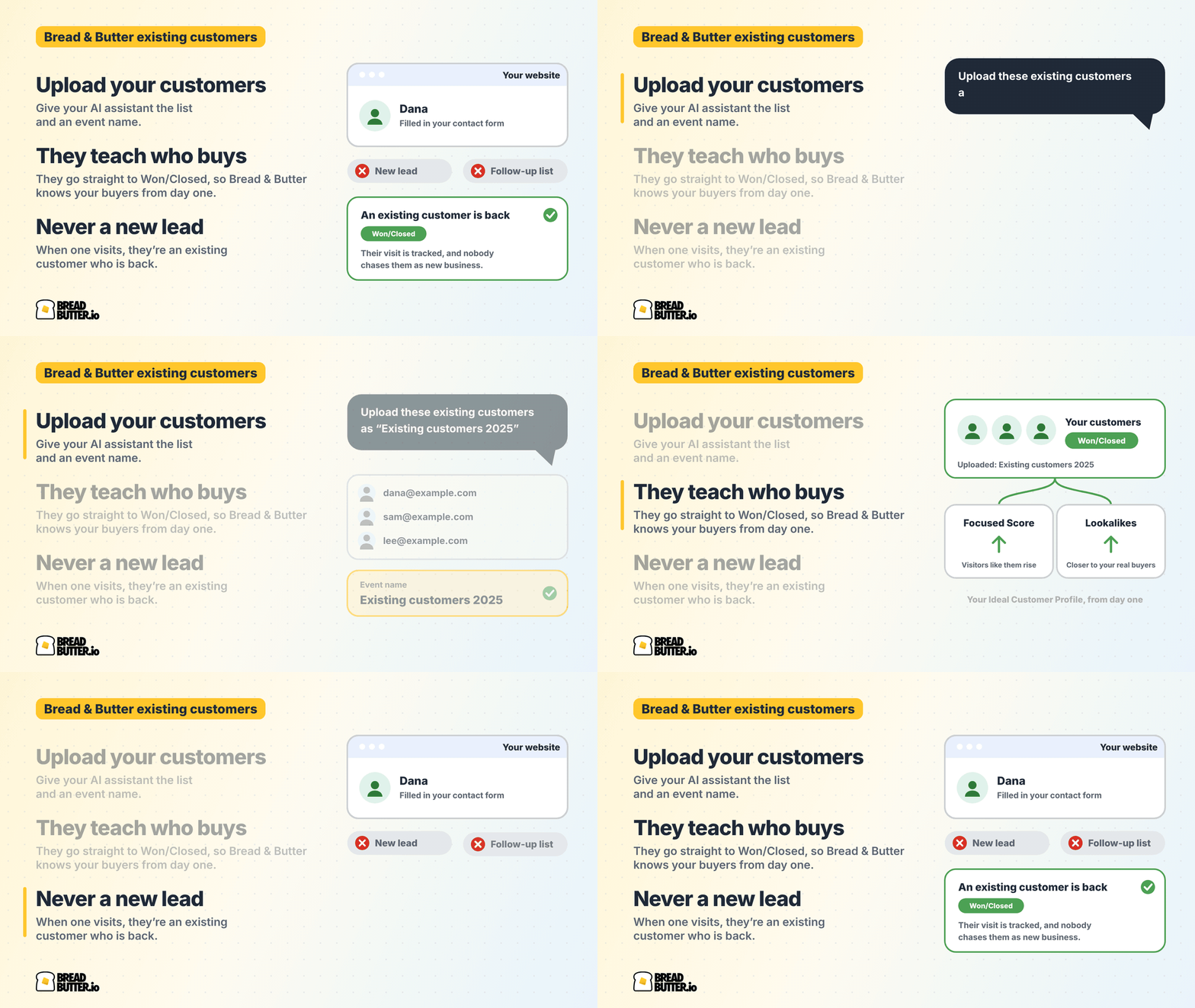
In short: On the Pro Plus plan, give your AI assistant a list of your customers' email addresses and an event name for the upload. Everyone on the list goes straight to lead stage 8, Won/Closed, and the event name is added to each person's User Journey, so you always know which upload they came from. It matters for two reasons: your customers teach Bread & Butter who buys from you from day one, and a customer who visits your website is never treated as a new lead. Uploaded customers stay in the background until they visit, so they don't show in your regular tabs and reports. To see them, filter on the upload's event.
Why it matters
Bread & Butter knows who buys from you from day one. Won/Closed is the stage that teaches Bread & Butter what a buyer looks like. Without an upload, that learning waits for your team to close deals and mark them one at a time. With it, your Ideal Customer Profile starts from the customers you already have. Each month, Bread & Butter researches the next customers from your upload with the credits your plan has left over, never all at once, and each one sharpens the profile. That does two things: visitors who share your customers' traits get a higher Focused Score, and the lookalikes Bread & Butter finds for you are closer to the people who really buy.
A customer is never treated as a new lead. Your sales team doesn't know every customer by name. Without an upload, a long-standing customer who fills in a form shows up as a new Engaged Lead: on the list of people to call, in your CRM as a new lead, and in line for a Nurture email. Once they're uploaded, Bread & Butter knows they're a customer before they arrive. When they visit, they show as an existing customer who is back, and nobody chases them as new business.
What you need
- The Pro Plus plan, with your AI assistant connected to Bread & Butter. There's no upload screen in the web app; the upload is done through your assistant. See Bread & Butter MCP server connections.
- Your customers' email addresses. Paste them into the conversation or attach a spreadsheet. The email address is all that's needed; first and last names help if you have them.
- An event name for the upload, such as "Existing customers 2025" or "Wholesale accounts". It's required, because it's how you'll find these people again.
How to upload your customers
- Ask your assistant. "Upload these existing customers to Bread & Butter as 'Existing customers 2025'", with the addresses pasted or the spreadsheet attached. Saying they're existing customers is what puts them at Won/Closed.
- Your assistant tidies the list. It trims spaces, removes duplicates and flags addresses that look mistyped, such as gmial.com.
- You see an estimate. How many people are new, how many are already in your account and how many of those will move to Won/Closed, how many addresses aren't valid, and whether the event name matches an earlier upload. Nothing is added until you confirm.
- Confirm. Every address is checked. Addresses that fail the check are set aside and counted, never added.
- Your assistant reads back the result. Added, already in your account, and set aside.
The event name tells you which upload someone came from
The upload doesn't create a list. It gives every person in it a user journey event with the name you chose, shown on their journey as "Uploaded: Existing customers 2025". That event is the label you filter on later.
- One event per upload. Upload your wholesale accounts under one name and your subscribers under another, and you can always tell the two groups apart.
- Use the same name again and it's the same event. Uploading more customers under a name you've already used adds them to that event. Nobody is added twice.
- A person can carry more than one. Someone who is in two uploads with different names has both events on their journey.
- It isn't website activity. An upload event is not a visit. It doesn't change anyone's Focused Score, and it doesn't count in your event charts or your attribution.
The event is only a label. What keeps customers out of your follow-up lists is their lead stage, Won/Closed.
Where your uploaded customers are
Uploaded customers are in your account from the moment you confirm, but they stay in the background until they visit your website. A customer who has never visited doesn't show in Focused, in Engaged Leads, in your regular tabs or in your reports, so the upload never inflates your numbers.
To see them, build a funnel on the upload's event:
- In your dashboard, choose Add Custom Funnel and give it a name.
- Open the Event filter. Your upload events are listed there with your other user events, each under the name you gave it.
- Select the upload you want to see, or several of them.
- Choose Apply Filters, then save the funnel so it stays as a tab.
The funnel lists everyone from the uploads you selected, whether or not they've visited your website, and whatever date range is selected. People who have visited come first; the others show no visits and no last-visit date. The count, the saved funnel and the CSV export all match the list. The map pins only the customers who have visited, because a location comes from a visit.
You can also ask your assistant about any one of them by name or email address. It finds uploaded customers who have never visited, and tells you they're an existing customer who hasn't visited yet.
When an uploaded customer visits your website
From their first visit, their journey is tracked like anyone else's, with the upload event kept on it in date order. They now show in your Won/Closed list without the event selected.
If they raise a hand, by filling in a form or subscribing for example, here is what happens:
- They stay at Won/Closed. They appear in your Engaged Leads tab already marked Won/Closed, and the lead stage rules you've set for new leads don't move them.
- No new-lead alerts. No new-lead Intelligence Brief goes out, nothing is sent to your CRM as a new lead, and no Nurture email is sent.
- Never on a call list. In the Leads to follow up report and the Report for Your Boss, they appear only as "An existing customer is back". An Intelligence Brief about them says they're an existing customer and leaves out the Outreach Starters.
- Never a lookalike. Customers are left out of the lookalikes Bread & Butter finds for you.
If someone stops being a customer, move them to another lead stage by hand. From then on they're treated as a lead again, and the upload event stays on their journey.
Customers who were already in your account
Some of the people you upload may already be in Bread & Butter, as Engaged Leads for example. They move to Won/Closed, and the change is logged on their profile. Their research, their visits and their history are all kept.
Check the estimate before you confirm. It tells you how many people already in your account will move to Won/Closed, and those people leave your follow-up lists the moment they do.
Related
- How do Lead Stages work in Bread & Butter, and why does marking Won/Closed matter?
- Why does marking leads Won/Closed make Focused Score more accurate?
- How do I filter, map, and save specific visitor segments within my traffic dashboard?
- Turn an old email list into pipeline: upload it through your AI assistant
- How Bread & Butter finds lookalikes of your best customers
- Leads to follow up report
- Bread & Butter MCP server connections
- How do Credits work across storage, syncing, and profile enrichment?