
Zapier App
Connecting Bread & Butter to Zapier allows you to bridge the gap between our high-fidelity lead intelligence and over 6,000 other applications, such as Slack, Trello, or custom email tools. There are two primary ways to utilize Zapier: through our native App integration for general data syncing, and via Webhooks for specific, event-driven automation rules.
Connecting the Native Zapier App
To get started with basic automation, you can connect the Bread & Butter app directly within your Zapier dashboard. This allows you to create "Zaps" that trigger whenever a new lead is identified or enriched. You will simply need your Bread & Butter API Key to authenticate the connection.
Step 1: Get your API Key
- Log in to your Bread & Butter Dashboard.
- Click Automation > Integrations on the left side menu.
- Under the Integrations section, click on the Zapier > Create via Zapier App.
- Click Generate Key.
- Copy your API Key (you may need to click the eye icon to reveal the secret).
- Keep it safe, you will need it in the next step.
Step 2: Connect in Zapier
You do not need to create an "Integration" record in Bread & Butter for the Zapier App. Instead, you create the connection directly inside Zapier.
- Log in to your Zapier Account.
-
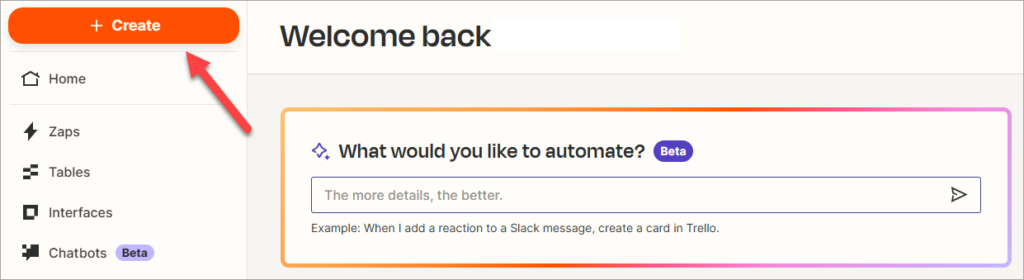
Click + Create and select Zap worflows.
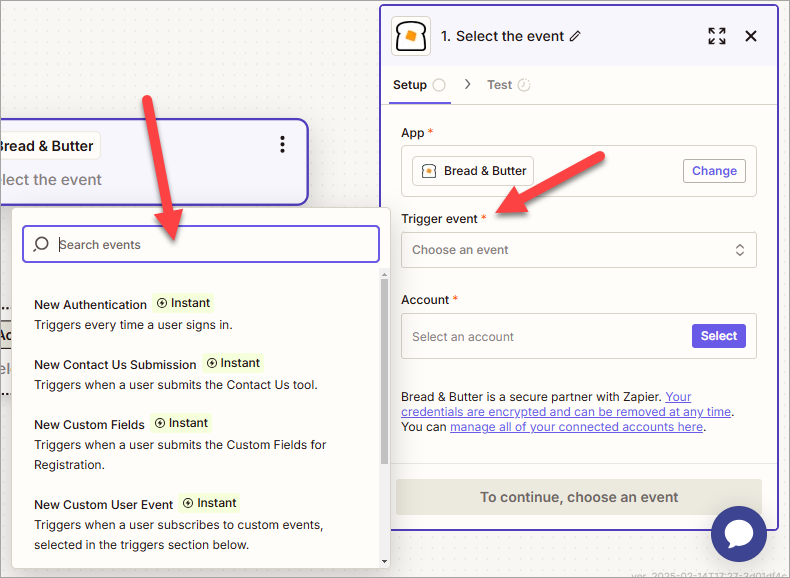
- Click on the Trigger step.
- Search for and select 'Bread & Butter'.
-
In the Event dropdown, choose your desired trigger (e.g., 'Profile Verified').
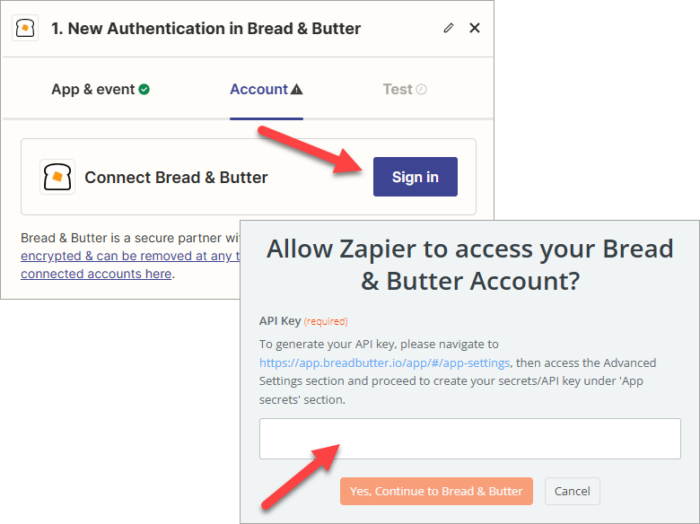
- Click Account and then Sign in. A popup window will appear asking for your credentials.
-
API Key: Paste the API Key you copied in Part 1.
-
-
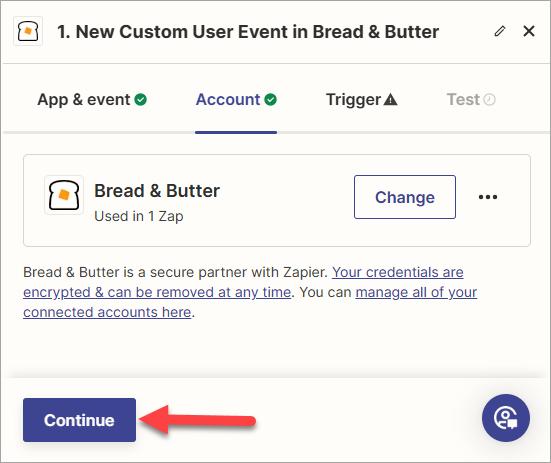
Click Continue to go to the Trigger section.
-
If you chose a System Event in Step 1.4, skip to the next step. If you selected a custom User Event, choose your specific User Event here. Then, click Continue.
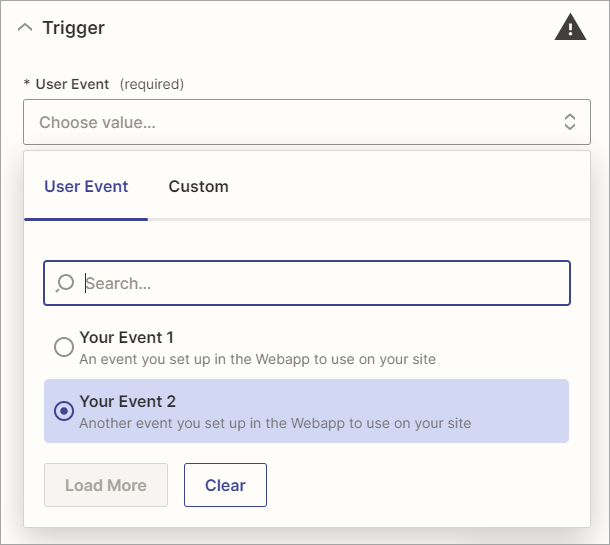
- Click Test trigger. A set of records will appear. Click Continue with selected record.
- Note: If you have no data yet, try signing into your website yourself to generate a test event.
- Follow Zapier’s guide for setting up a Zap Action.
- Publish: Once configured, publish your Zap to turn it on.
Removing a Zapier App Integration
Zapier App Integrations can only be removed from Zapier. Head to Zapier and find your Zap. Turning off or deleting a Zap will stop the Zap and Integration from running.
Your integration is now live! Bread & Butter will instantly push data to Zapier whenever the trigger event occurs.