
Zapier Webhook
Connecting Bread & Butter to Zapier allows you to bridge the gap between our high-fidelity lead intelligence and over 6,000 other applications, such as Slack, Trello, or custom email tools. There are two primary ways to utilize Zapier: through our native App integration for general data syncing, and via Webhooks for specific, event-driven automation rules.
Custom Automation via Zapier Webhooks
For more advanced, logic-based workflows, you can utilize the Bread & Butter Rules Engine to trigger Zapier Webhooks. By using Webhooks, you can bypass the standard polling delays and trigger actions in real-time.
Step 1: Create your Webhook in Zapier
- Log in to your Zapier account
-
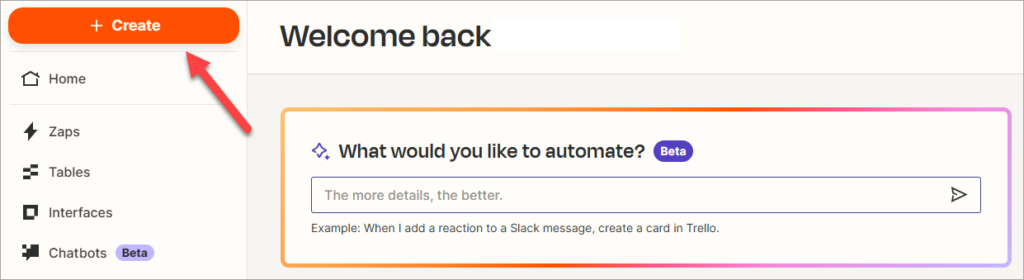
Click + Create and select Zap workflows.
- Click on the Trigger step.
-
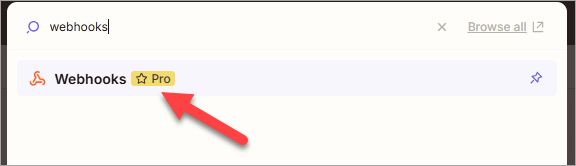
Search for and select Webhooks.
-
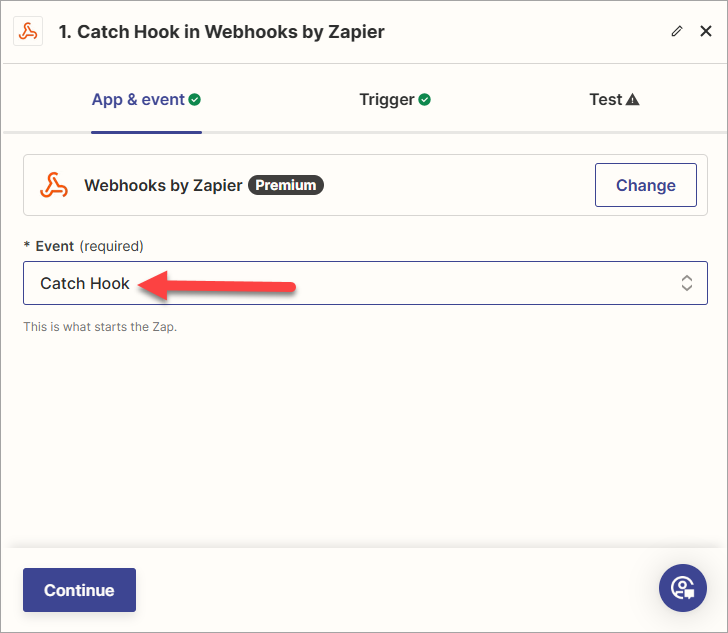
Choose Catch Hook as the Event and click continue twice. Zapier will provide you with a unique 'Webhook URL'. Copy this URL to your clipboard, as you will need it for the Bread & Butter dashboard.
Step 2: Connect Webhook in Bread & Butter
- Log in to your Bread & Butter Dashboard.
- Click Automation in the left menu, then go to the Cloud Integrations tab.
- Under the Cloud Integrations section, click Create New, then choose the Zapier > Zapier Webhook logo to create a new integration.
- Enter a Name for the integration (e.g., "Zapier - New Lead").
- Paste the Webhook URL you generated in Part 1 into the Zapier Endpoint field.
- Click Test Connection. If a green checkmark appears, move to the next step. If you see a red X, confirm that you have entered the correct Zapier Endpoint and then try again.
-
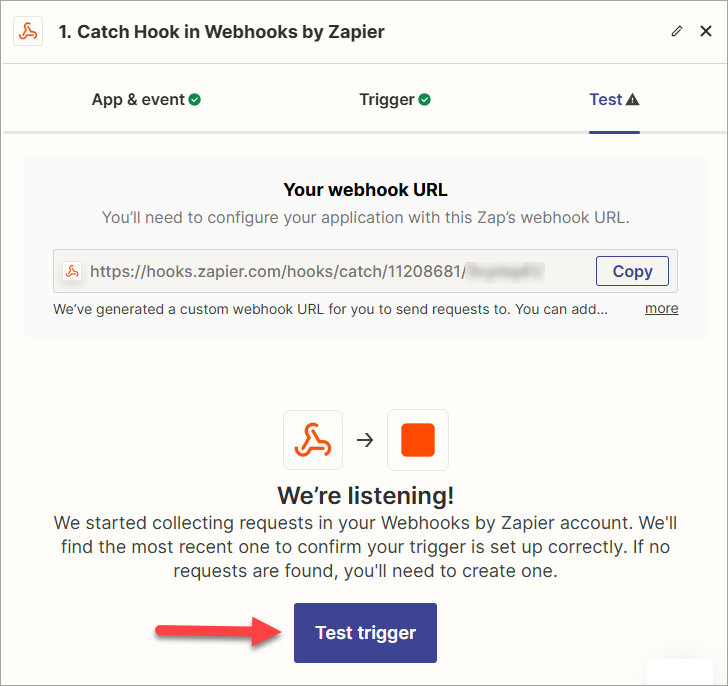
Return to Zapier and click Test Trigger. You should see that a request was found, including the request details. If this is not the case, please repeat steps 5 and 6, and verify that you have entered the correct Webhook URL into the Bread & Butter.
- Click Continue with selected record.
- Follow Zapier’s guide for setting up a Zap Action
- Return to your Bread & Butter Integration and click Save & close.

Note: a Bread & Butter Zapier Webhook Integration connects directly to only one Zap, so if you want to make multiple Zaps, you’ll need to create a new Zapier Webhook Integration for each one.
Step 3: Set up Rules
Once the Zapier Webhook is connected, create a Rule to determine which event triggers the data send.
- Log in to your Bread & Butter Dashboard.
- Click Automation > Integrations on the left side menu.
- Select the Zapier Integration you created in Part 2.
- Under the Rules section, choose the Filter Conditions that will trigger this rule (e.g., EVENT: Email Verified, LEAD SCORE: 6,7,8,9,10). You can manually refine the filter condition, or pick from the pre-configured filters that were previously saved for your account.
- Enter a descriptive Name for the rule (e.g., 'New Lead').
- Click Save & Close.
Your integration is now live! Bread & Butter will instantly push data to Zapier whenever the trigger event occurs.