
OneLogin enterprise connection (OpenID Connect or SAML)
If your customers or users work at companies that use OneLogin to manage sign-in, their IT team may ask for an enterprise connection, so their people can sign in to your website or app with their OneLogin account and only the people they allow can. Bread & Butter supports two ways to set this up: OpenID Connect and SAML. This article helps you choose, then walks through each one.
In short: An enterprise connection lets people sign in through their organization's OneLogin account, under rules their IT team controls. OpenID Connect is the simpler option: in OneLogin, add the OpenId Connect (OIDC) app, set the redirect URI to
https://api.breadbutter.io/callback, set the token endpoint authentication method to POST, copy the Client ID, Client Secret and Issuer URL, and give your users access. SAML is for IT teams that require it: add the SAML Custom Connector (Advanced) app, set the ACS URL to the same address, add the first name, last name, email and OneLogin ID parameters, copy the Issuer URL, SAML 2.0 endpoint and X.509 certificate, and give your users access. Then paste those values into Bread & Butter under Settings, then Global Conversion Methods, then Enterprise Connections.Need a hand? Setting up an enterprise connection can feel a bit overwhelming. We offer a free 15-minute onboarding session to help you get this configured. Book your session with a specialist here.
OpenID Connect or SAML?
Both let people sign in with their OneLogin account. Choose one.
- OpenID Connect is the simpler, more modern option, and the one to choose if nobody has asked for SAML.
- SAML is the one to choose when a customer's IT team requires it.
Two things work differently with SAML. You replace a certificate instead of a client secret, and Return Authorization Data isn't available, so Bread & Butter can't pass a OneLogin access token to your site. See What are scopes and access tokens, and how do I request more access from a sign-in provider?
What you'll need
- A OneLogin administrator account, with permission to add apps and give users access.
- Your Bread & Butter dashboard.
Set up OpenID Connect
In OneLogin
Step 1
Log in to your OneLogin account.
Step 2
Go to the Administration panel, then go to the Applications tab.
Step 3
Click Add App at the top right of the page.
Step 4
- Search for:
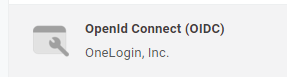
oidc - Click on OpenId Connect (OIDC) by OneLogin, Inc. to add it.
Step 5
For Display Name, enter your organization's name and click Save.
Step 6
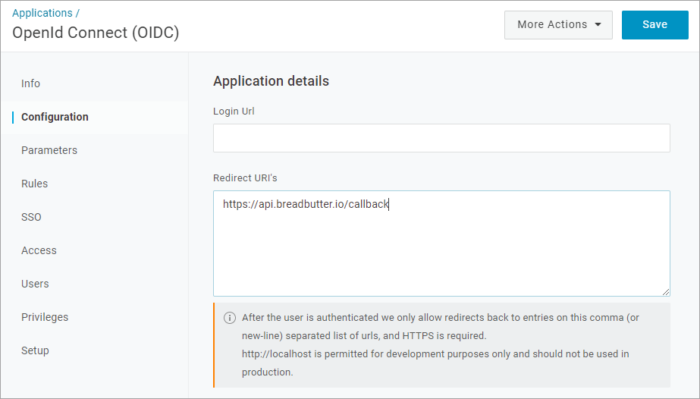
Go to Configuration in the left menu, and enter the following information:
- For the Redirect URI's field, enter:
https://api.breadbutter.io/callback - Click Save.
Step 7
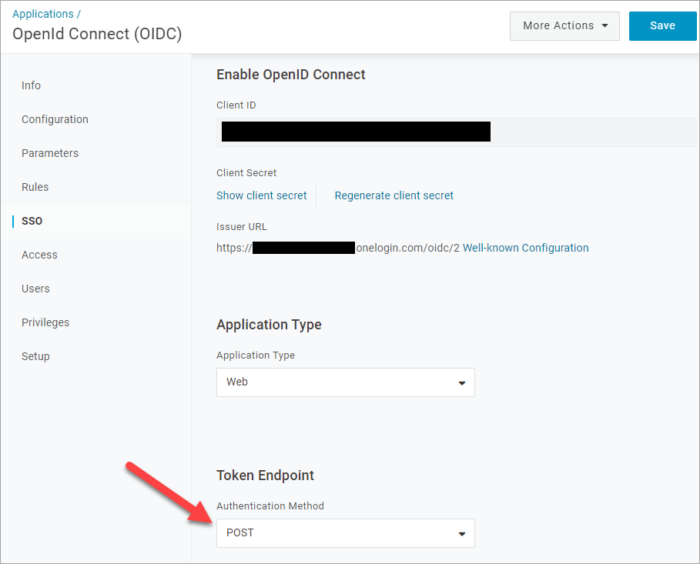
Go to SSO in the left menu, and change the Token Endpoint Authentication Method to POST. Click Save.
Step 8
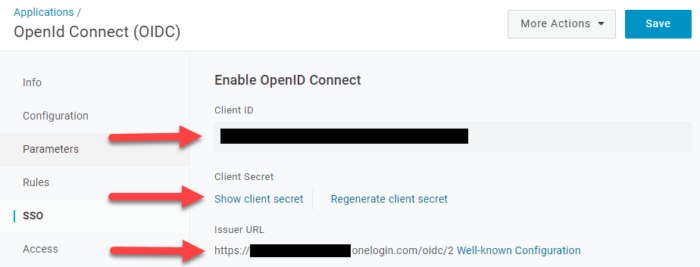
On the same page, copy and save the following information:
- Client ID
- Client Secret
- Issuer URL
Step 9
Go to Users in the top navigation, and edit your users to give them access to the app.
In Bread & Butter
Step 10
- Log in to your Bread & Butter dashboard: https://app.breadbutter.io
- Go to Settings in the left menu, then go to the Global Conversion Methods tab.
- Click the OneLogin button under Enterprise Connections.
- Choose OpenID Connect for the protocol.
- Enter a name.
- Enter a description (optional).
- Using the Issuer URL from step 8, enter the Login URL as
[Issuer URL]/auth, for examplehttps://example.onelogin.com/oidc/2/auth. - Enter the Token URL as
[Issuer URL]/token, for examplehttps://example.onelogin.com/oidc/2/token. - Enter the Client ID from the OneLogin steps above.
- Enter the Client Secret from the OneLogin steps above.
- Click Save.
- Enable OneLogin by clicking the new entry in the OneLogin connections list.
Note: It may take up to 30 minutes for changes to take effect. If you see errors when signing in, check back in 30 minutes.
Set up SAML
In OneLogin
Step 1
Log in to your OneLogin account.
Step 2
Go to the Administration panel, then go to the Applications tab.
Step 3
Click Add App at the top right of the page.
Step 4
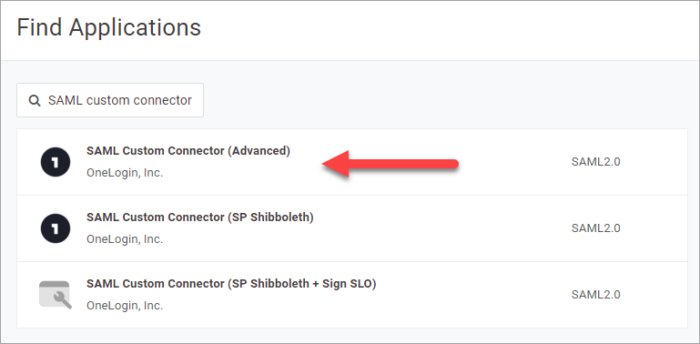
- Search for:
SAML Custom Connector - Click on SAML Custom Connector (Advanced) to add it.
Step 5
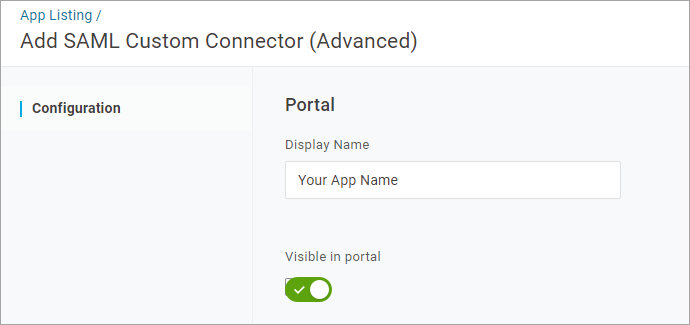
For Display Name, enter your organization's name and click Save.
Step 6
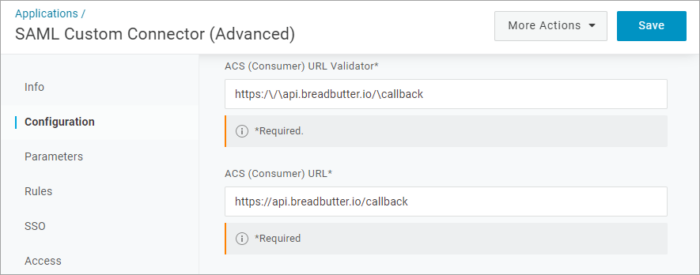
Go to Configuration in the left menu, and enter the following information:
- For the ACS (Consumer) URL Validator field, enter:
https:\/\/api\.breadbutter\.io\/callback - For the ACS (Consumer) URL field, enter:
https://api.breadbutter.io/callback - Click Save.
The validator is a pattern OneLogin checks the ACS URL against, which is why it has backslashes in it.
Step 7
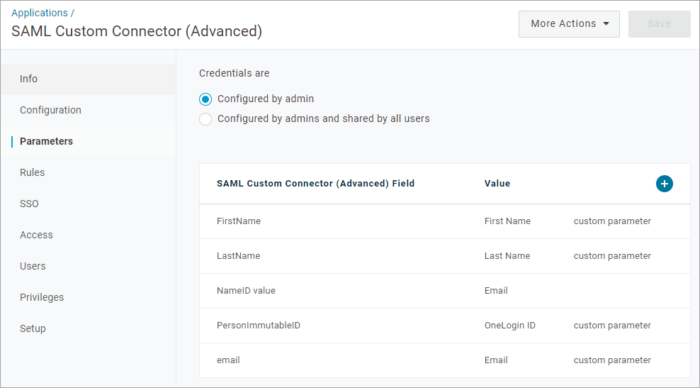
Go to Parameters in the left menu, and click + to add parameters. Add each of the following, and check Include in SAML assertion for every one:
| Field name | Value |
|---|---|
FirstName |
First Name |
LastName |
Last Name |
Email |
|
PersonImmutableID |
OneLogin ID |
Click Save.
Step 8
Go to SSO in the left menu, and take note of the following information:
- Issuer URL
- SAML 2.0 Endpoint (HTTP)
- X.509 Certificate (click View Details)
Step 9
Go to Users in the top navigation, and edit your users to give them access to the app.
In Bread & Butter
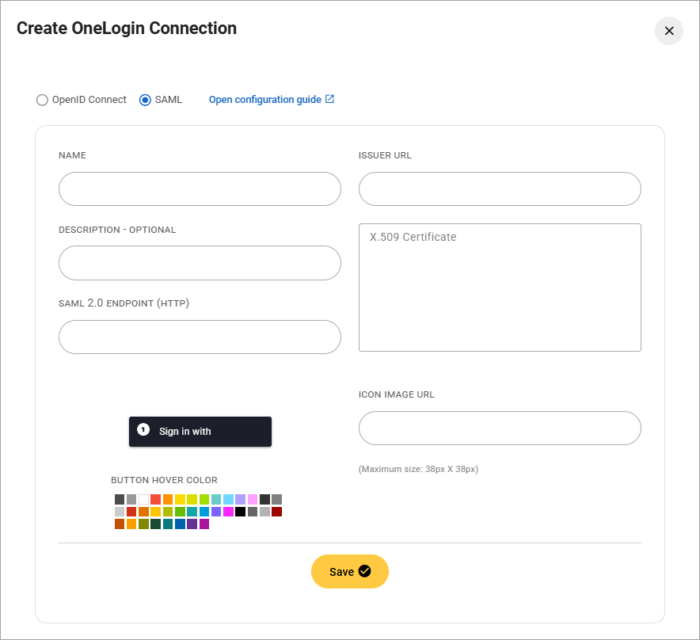
Step 10
- Log in to your Bread & Butter dashboard: https://app.breadbutter.io
- Go to Settings in the left menu, then go to the Global Conversion Methods tab.
- Click the OneLogin button under Enterprise Connections.
- Choose SAML for the protocol.
- Enter a name.
- Enter a description (optional).
- Enter the Issuer URL and the SAML 2.0 Endpoint (HTTP) from step 8 in the fields of the same names.
- Enter the X.509 Certificate from step 8. Do not include
-----BEGIN CERTIFICATE-----and-----END CERTIFICATE-----. - Click Save.
- Enable OneLogin by clicking the new entry in the OneLogin connections list.
Keep your credentials current
Client secrets and SAML certificates can expire or be replaced by your IT team. When either changes in OneLogin, paste the new value into the matching connection in Bread & Butter straight away; until you do, people can't sign in with that connection. If you think a client secret has been exposed, replace it. See What is a client secret, and what do I do if one is compromised?
Related
- Microsoft Entra ID enterprise connection (OpenID Connect or SAML)
- Google Workspace enterprise connection (OpenID Connect or SAML)
- What are scopes and access tokens, and how do I request more access from a sign-in provider?
- Conversion Methods Overview
- What is a Custom Auth Domain, and how do I set it up?