
Google Workspace enterprise connection (OpenID Connect or SAML)
If your customers or users work at companies that run on Google Workspace, their IT team may ask for an enterprise connection, so their people can sign in to your website or app with their company Google account and nobody from outside the company can. Bread & Butter supports two ways to set this up: OpenID Connect and SAML. This article helps you choose, then walks through each one.
In short: An enterprise connection lets people sign in with their organization's Google Workspace account, under rules their IT team controls. OpenID Connect is the simpler option: in the Google Cloud console, create a project, set the OAuth app's audience to Internal, add the
profileandopenidscopes, create a web application client with the redirect URIhttps://api.breadbutter.io/callback, and paste its Client ID and Client Secret into Bread & Butter. SAML is for IT teams that require it: in the Google Admin console, add a custom SAML app, download the IdP metadata, set the ACS URL to the same address, map email, first name and last name, turn the app on, and paste the SSO URL, Entity ID and X.509 certificate into Bread & Butter. Both are set up under Settings, then Global Conversion Methods, then Enterprise Connections. SAML certificates last five years, so note the date.Need a hand? Setting up an enterprise connection can feel a bit overwhelming. We offer a free 15-minute onboarding session to help you get this configured. Book your session with a specialist here.
OpenID Connect or SAML?
Both let people sign in with their company Google account. Choose one.
- OpenID Connect is the simpler, more modern option, and the one to choose if nobody has asked for SAML. It's set up in the Google Cloud console.
- SAML is the one to choose when a customer's IT team requires it and wants to control access from their own Google Admin console.
Two things work differently with SAML. You replace the certificate before it expires, and Return Authorization Data isn't available, so Bread & Butter can't pass a Google access token to your site. See What are scopes and access tokens, and how do I request more access from a sign-in provider?
This article is for company accounts. To offer "Continue with Google" to anyone with a Google account, including personal Gmail, see Google (Gmail + Google Suite).
What you'll need
- For OpenID Connect: access to your organization's Google Cloud console, with permission to create projects.
- For SAML: a Google Workspace administrator account with permission to add apps in the Google Admin console.
- Your Bread & Butter dashboard.
Set up OpenID Connect
In the Google Cloud console
Step 1
Log in to the Google Cloud console:
https://console.cloud.google.com/
Step 2
At the top of the page, click Select a project, then New project, if you have not already created a project.
Step 3
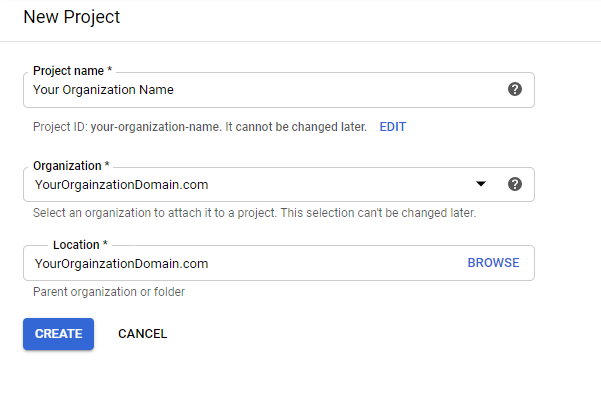
- For Project name, enter your organization's name.
- For Organization, select your organization.
- For Location, select your organization.
Click Create.
Step 4
At the top of the page, change your project to the one you just created. If it's your first project, it should already be selected.

Step 5
In the left menu (or under Quick access on the page), click on APIs & Services, then OAuth consent screen.
Step 6
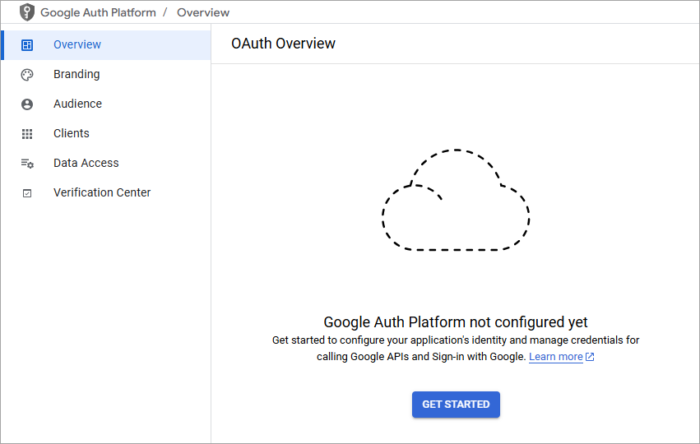
Click Get started to begin the OAuth setup process.
Step 7
- For App name, enter your organization's name.
- For User support email, enter your email address.
- Click Next.
Step 8
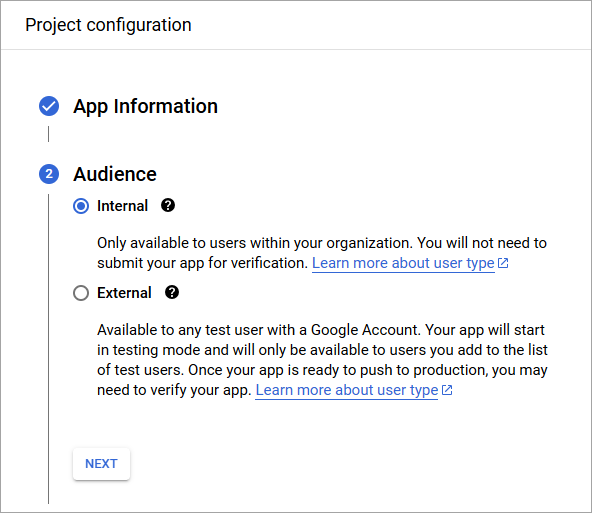
- For Audience, choose Internal.
- Click Next.
Internal limits sign-in to people in your organization's Google Workspace, which is what makes this an enterprise connection.
Step 9
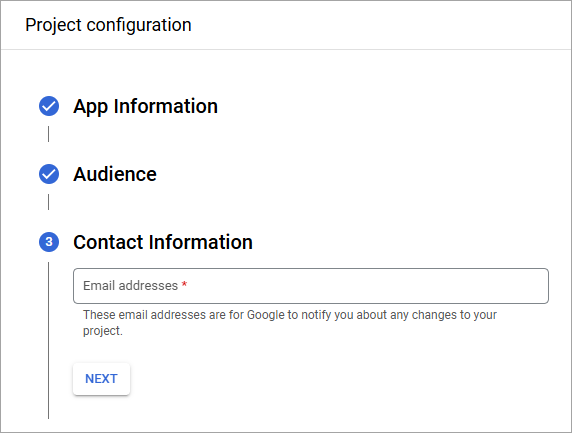
Enter your contact email address, then click Next.
Step 10
Review and agree to Google's User Data Policy, then click Continue, then Create.
Step 11
Optional: In the left menu, go to Branding, and enter your privacy policy and terms of service links.
Step 12
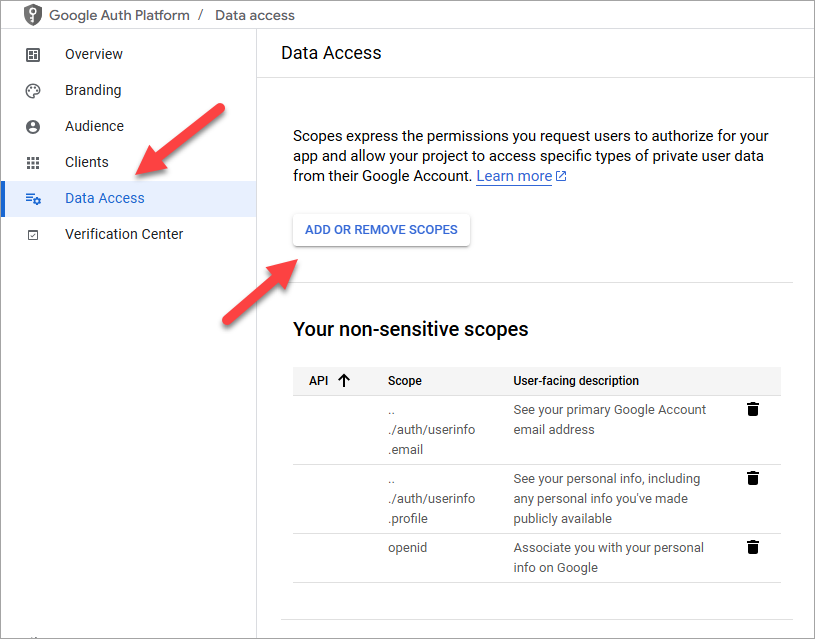
- In the left menu, select Data Access.
- Click Add or remove scopes.
- Select or manually add
email,profileandopenidto the scopes. - Click Update at the bottom of the side panel, then click Save on the Data Access page.
Step 13
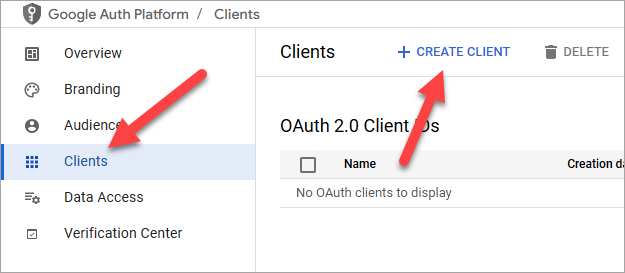
- In the left menu, select Clients.
- Click Create client.
Step 14
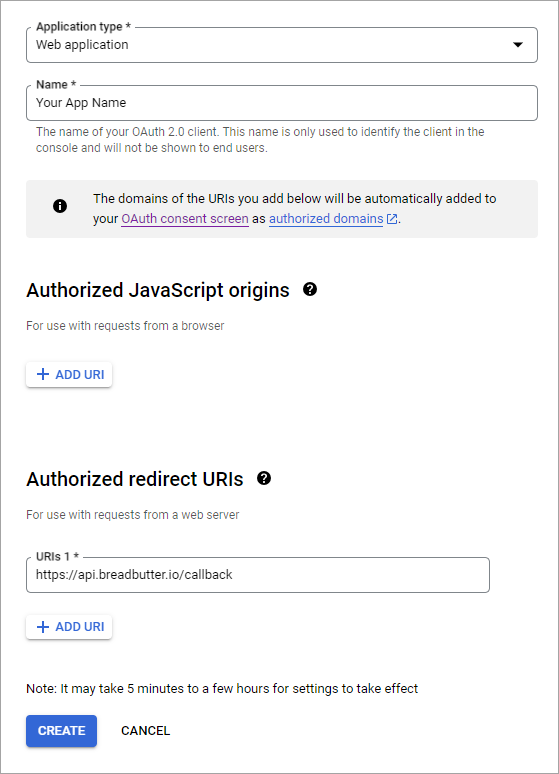
- For Application type, select Web application.
- For Name, enter your app name. We recommend entering your organization name.
- For Authorized redirect URIs, enter:
https://api.breadbutter.io/callback - Click Create.
Step 15
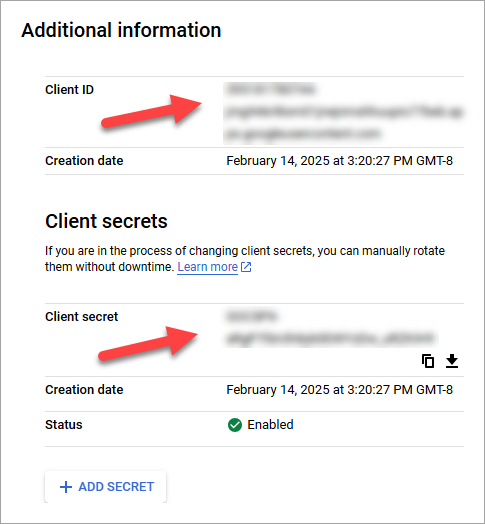
Click on the client you just created, and then copy the Client ID and Client Secret for the Bread & Butter setup below.
In Bread & Butter
Step 16
- Log in to your Bread & Butter dashboard: https://app.breadbutter.io
- Go to Settings in the left menu, then go to the Global Conversion Methods tab.
- Click the Google button under Enterprise Connections.
- Choose OpenID Connect for the protocol.
- Enter a name.
- Enter a description (optional).
- In the Login URL field, enter:
https://accounts.google.com/o/oauth2/v2/auth - In the Token URL field, enter:
https://oauth2.googleapis.com/token - Enter the Client ID from the Google steps above.
- Enter the Client Secret from the Google steps above.
- Click Save.
- Enable Google by clicking the new entry in the Google connections list.
Step 17
People may still see breadbutter.io on the Google sign-in window. To show your own domain instead, set up a Custom Auth Domain. See What is a Custom Auth Domain, and how do I set it up?
Set up SAML
In the Google Admin console
Step 1
Log in to the Google Admin console:
Step 2
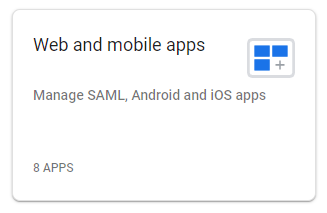
- In the menu, go to Apps, then Web and mobile apps.
- Click Add app, then Add custom SAML app.
Step 3
- For App name, enter your organization's name.
- Enter a description and app icon if you'd like.
- Click Continue.
Step 4
- In the dialog that appears, complete Option 1 to download the IdP metadata, and keep this for the Bread & Butter setup below.
- Note: the X.509 certificate will expire in five years. Set a reminder for yourself to generate a new certificate before it expires. If the certificate expires, your users will no longer be able to sign in with the provider.
- Click Continue.
Step 5
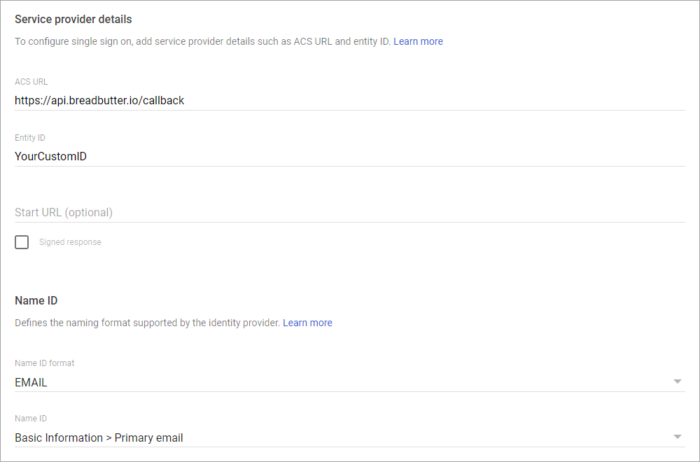
- For ACS URL, enter the following:
https://api.breadbutter.io/callback - For Entity ID, choose a unique name.
- Leave Start URL blank.
- For Name ID format, choose EMAIL.
- Click Continue.
Step 6
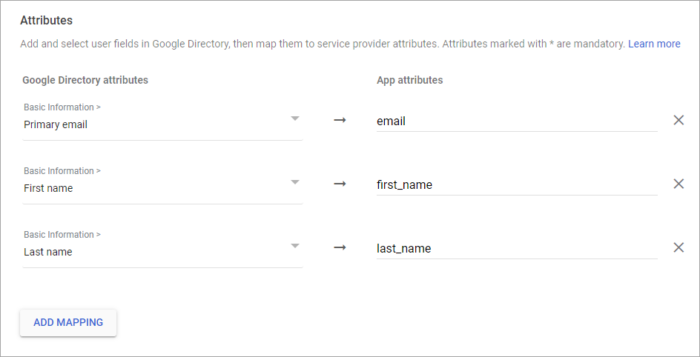
Under Attributes, click Add mapping and add the following entries (case sensitive):
- Add
email, and choose the value Primary email from Basic Information. - Add
first_name, and choose the value First name from Basic Information. - Add
last_name, and choose the value Last name from Basic Information.
Click Finish.
Step 7
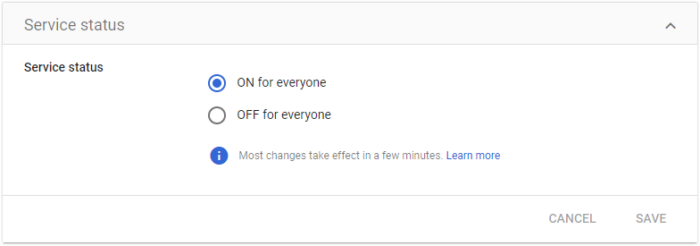
- Your app information should now be displayed. Expand the User access section by clicking on it.
- Set Service status to ON for everyone.
- Click Save.
Most changes take effect within a few minutes, but Google says they can take up to 24 hours.
Connect it to Bread & Butter
Step 8
- Log in to your Bread & Butter dashboard: https://app.breadbutter.io
- Go to Settings in the left menu, then go to the Global Conversion Methods tab.
- Click the Google button under Enterprise Connections.
- Choose SAML for the protocol.
- Enter a name.
- Enter a description (optional).
- In the Login URL field, enter the SSO URL from the downloaded "GoogleIDPMetadata" document.
- In the Entity ID field, enter the Entity ID that you set in step 5.
- In the X.509 Certificate field, enter the X.509 certificate from the downloaded "GoogleIDPMetadata" document. Do not include
-----BEGIN CERTIFICATE-----and-----END CERTIFICATE-----. - Click Save.
- Enable Google by clicking the new entry in the Google connections list.
Keep the certificate current
Google's SAML certificates last five years. You can see which are close to expiring in the Google Admin console. When it's time, create a new certificate for the app in Google, download the new IdP metadata, and paste the new certificate into the X.509 Certificate field of your Google SAML connection in Bread & Butter. If the certificate expires first, people can't sign in with this connection until you do.
Related
- Google (Gmail + Google Suite)
- What is Google Account SSO? (Supporting Google for Single Sign-On)
- What are scopes and access tokens, and how do I request more access from a sign-in provider?
- Conversion Methods Overview
- What is a Custom Auth Domain, and how do I set it up?
Sources
- Google Workspace Admin Help, Set up your own custom SAML app
- Google Workspace Admin Help, Maintain SAML certificates (five-year certificate lifetime)