
Microsoft Entra ID enterprise connection (OpenID Connect or SAML)
If your customers or users work at companies that run on Microsoft 365, their IT team may ask for an enterprise connection to Microsoft Entra ID (formerly Azure Active Directory), so their people can sign in to your website or app with their company Microsoft account and nobody from outside the company can. Bread & Butter supports two ways to set this up: OpenID Connect and SAML. This article helps you choose, then walks through each one.
In short: An enterprise connection lets people sign in with their organization's Microsoft Entra ID account, under rules their IT team controls. OpenID Connect is the simpler option: in the Azure portal, register a single-tenant app with the redirect URI
https://api.breadbutter.io/callback, copy its Application (client) ID and its authorization and token endpoints, create a client secret, and paste them into Bread & Butter. SAML is for IT teams that require it: create a non-gallery enterprise application, set its Reply URL to the same address, check the email and name claims, download the Federation Metadata XML, assign the people who may sign in, and paste the Login URL, Entity ID and X.509 certificate into Bread & Butter. Both are set up under Settings, then Global Conversion Methods, then Enterprise Connections. Client secrets and SAML certificates both expire, so note the dates.Need a hand? Setting up an enterprise connection can feel a bit overwhelming. We offer a free 15-minute onboarding session to help you get this configured. Book your session with a specialist here.
OpenID Connect or SAML?
Both let people sign in with their company Microsoft account. Choose one.
- OpenID Connect is the simpler, more modern option, and the one to choose if nobody has asked for SAML. It's set up under App registrations.
- SAML is the one to choose when a customer's IT team requires it, which is common in larger organizations with existing SAML policies. It's set up under Enterprise applications.
Two things work differently with SAML. You replace a certificate instead of a client secret, and Return Authorization Data isn't available, so Bread & Butter can't pass a Microsoft access token to your site. See What are scopes and access tokens, and how do I request more access from a sign-in provider?
This article is for company accounts. To offer "Continue with Microsoft" to anyone with a Microsoft account, see Microsoft.
What you'll need
- Access to your organization's Azure portal, with permission to register applications (OpenID Connect) or create enterprise applications (SAML). This is usually an administrator.
- Your Bread & Butter dashboard.
Microsoft renamed Azure Active Directory to Microsoft Entra ID in 2023. The steps below use the Azure portal; the same pages are also in the Microsoft Entra admin center.
Set up OpenID Connect
In the Azure portal
Step 1
Log in to your Azure Portal:
Step 2
Under Azure services, click on App registrations.
If you don't see it, click on More services and search for it.

Step 3
Click New registration.
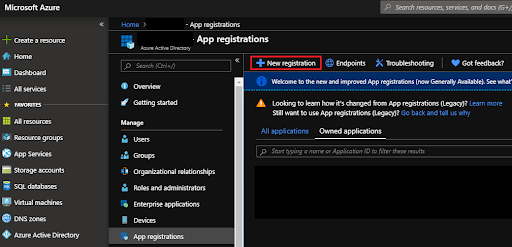
Step 4
- Enter a name for your application (we recommend using your organization name).
- Select Single tenant for the supported account types.
- Set the Redirect URI to Web, then enter:
https://api.breadbutter.io/callback
Note: For the Microsoft enterprise connection, make sure the account type is Single tenant. This restricts sign-in to your organization only, whereas Multitenant allows any Microsoft user to sign in.

Step 5
- Click Register.
- After the application is created, copy and save the Application (client) ID for the last step.

Step 6
Click on Endpoints at the top of the page, and copy the following for the last step:
- OAuth 2.0 authorization endpoint (v2)
- OAuth 2.0 token endpoint (v2)

Step 7
- In the left menu under Manage, click on Certificates & secrets, and then click on New client secret.
- Enter a description, set your desired expiry, and then click Add.
- Set a reminder for yourself to replace this secret before it expires. If the secret expires, your users will no longer be able to sign in with the provider.
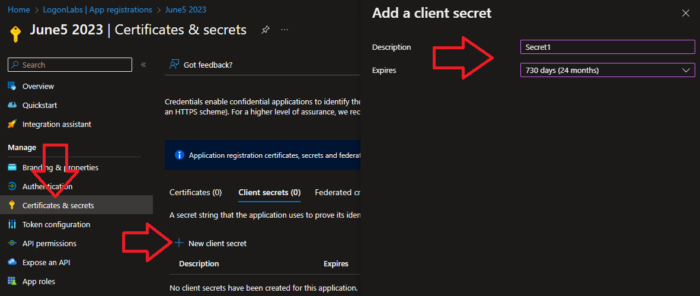
Step 8
Copy and store the secret Value immediately. If you navigate away, the value will no longer be visible and you will have to generate a new secret.

Step 9
In the left menu, click on Branding & properties. Then enter your Privacy Policy URL, Terms of service URL, and any other branding options you would like.
Step 10
- On the same page, add your Partner One ID (formerly called the MPN ID) to verify the publisher.
- For more information on joining, check out the Microsoft AI Cloud Partner Program.
- Note: You can come back and complete this step later, but your app will show as "Unverified" to your users.
In Bread & Butter
Step 11
- Log in to your Bread & Butter dashboard: https://app.breadbutter.io
- Go to Settings in the left menu, then go to the Global Conversion Methods tab.
- Click the Microsoft button under Enterprise Connections.
- Choose OpenID Connect for the protocol.
- Enter a name.
- Enter a description (optional).
- Enter the OAuth 2.0 authorization endpoint (v2) value from the Endpoints page in Azure.
- Enter the OAuth 2.0 token endpoint (v2) value from the Endpoints page in Azure.
- Enter the Application (client) ID from the Overview page in Azure.
- Enter the Client Secret that you generated and saved above.
- Click Save.
- Enable Microsoft by clicking the new entry in the Microsoft connections list.
Keep the client secret current
When the client secret is close to expiring, create a new one under Certificates & secrets, paste it into your Microsoft OpenID Connect connection in Bread & Butter, then delete the old one in Azure. If you ever think a secret has been exposed, replace it straight away. See What is a client secret, and what do I do if one is compromised?
Set up SAML
In the Azure portal
Step 1
Log in to your Azure Portal:
Step 2
Under Azure services, click on Enterprise applications.
If you don't see it, click on More services and search for it.

Step 3
Click New application.

Step 4
- Click Create your own application.
- Enter a name for your application (we recommend using your organization name).
- Select Integrate any other application you don't find in the gallery (Non-gallery).
- Click Create.
Alternatively, you can choose an existing SAML app from Microsoft.

Step 5
Under Manage in the left menu, go to the Single sign-on page, and select SAML.

Step 6
On the Single sign-on page, click the edit button at the top right of the Basic SAML Configuration section.

Step 7
- For Entity ID, enter anything you want. For example, you can enter your company name.
- For Reply URL, enter:
https://api.breadbutter.io/callback - If required, for the Sign on URL enter:
https://api.breadbutter.io/callback - Click Save.

Step 8
In the Attributes & Claims section, make sure at least the following are present:
- emailaddress
- givenname
- surname

Step 9
- Download the Federation Metadata XML for the Bread & Butter configuration below. Specifically, take note of the Login URL, Identifier (Entity ID) and X.509 Certificate.
- Set a reminder for yourself to generate a new certificate before it expires. If the certificate expires, your users will no longer be able to sign in with the provider.
Step 10
Go to Users and groups in the left menu, and add the users and user groups you want to allow to sign in with this app.
Connect it to Bread & Butter
Step 11
- Log in to your Bread & Butter dashboard.
- https://app.breadbutter.io
- Go to Settings in the left menu, then go to the Global Conversion Methods tab.
- Click the Microsoft button under Enterprise Connections.
- Choose SAML for the protocol.
- Enter a name.
- Enter a description (optional).
- Enter the Login URL from the setup page in Azure.
- In the Client ID field, enter the Identifier (Entity ID) that you set in step 7.
- In the X.509 Certificate field, enter the X.509 certificate from the Federation Metadata XML document that you downloaded above. Do not include the
<X509Certificate>begin and end tags. - Click Save.
- Enable Microsoft by clicking the new entry in the Microsoft connections list.
Show Image
Keep the certificate current
Microsoft Entra ID creates the signing certificate for your application with a validity of three years, and emails the administrator who added the application 60, 30 and 7 days before it expires. You can add up to five email addresses to receive those reminders on the application's Single sign-on page.
When it's time, create a new certificate in Azure, then paste it into the X.509 Certificate field of your Microsoft SAML connection in Bread & Butter. If the certificate expires first, people can't sign in with this connection until you do.
Related
- Microsoft
- What are scopes and access tokens, and how do I request more access from a sign-in provider?
- What is a client secret, and what do I do if one is compromised?
- Conversion Methods Overview
- What is a Custom Auth Domain, and how do I set it up?
Sources
- Microsoft, Tutorial: Manage federation certificates (three-year validity; reminders at 60, 30 and 7 days)