
Google (Gmail + Google Suite)
Need a hand? Setting up developer credentials can sometimes feel a bit overwhelming. We offer a complimentary 15-minute onboarding session to help you get this configured perfectly. Book your session with a specialist here
When you first install Bread & Butter, the Google 1-click connection is pre-configured in Sandbox Mode. This allows you to instantly test your widgets, but it means visitors will see Bread & Butter’s name on the Google connection screen instead of yours.
To maximize user trust and prevent conversion drop-off, you must transition Google out of the sandbox. By creating a free Google Cloud project, you can generate your own credentials so buyers see your brand when they click "Continue with Google."

Here is how to set it up in five steps.
Step 1: Create Your Google Cloud Project
- Log in to the Google Cloud Console.
- At the top of the page, click the Select a Project dropdown, then click New Project.
-
For the Project name, enter your company or website name. Ensure your Organization and Location are correctly selected, then click Create.
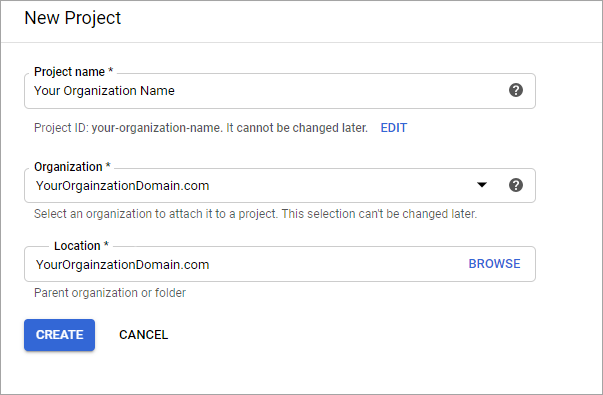
-
Once created, check the top of the page to ensure your newly created project is the actively selected one.

Step 2: Configure the Consent Screen
This dictates what your visitors will see when they attempt to connect.
- In the left-hand navigation menu (or under 'Quick access'), click on APIs & Services, then select OAuth consent screen.
-
Click Get Started to begin the setup process.
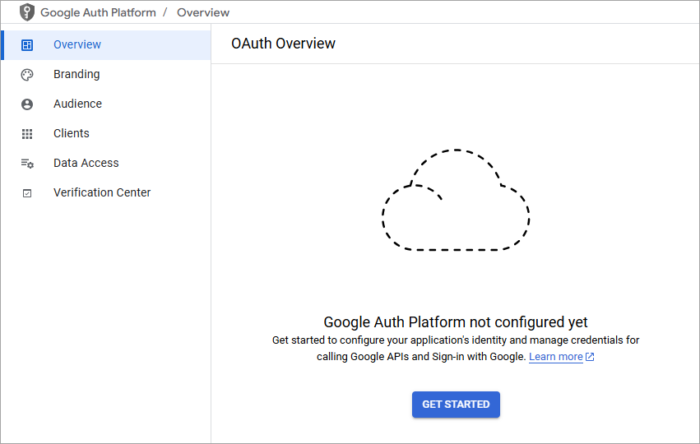
For the Application name, enter your brand name exactly as you want visitors to see it. Enter your Support email, then click Next.
For Audience, choose External and click Next.
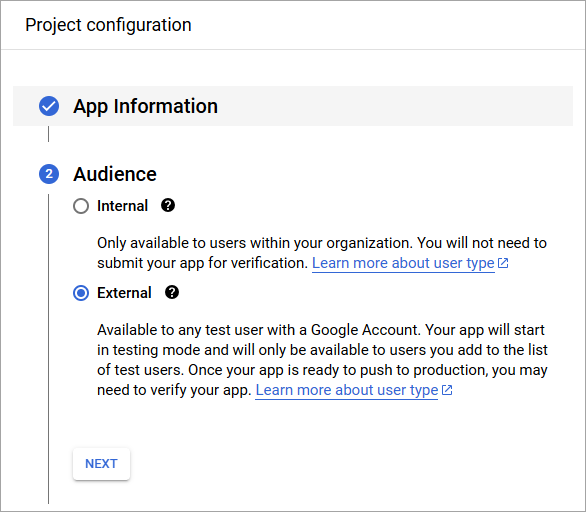
- (Note: This is crucial. "External" allows any standard Google user to connect to your widgets. "Internal" restricts access strictly to your own employees).
- Enter a Contact email address for developer notifications, then click Next.
- Review Google's User Data Policy, click Continue, and then Create.
- In the left menu, go to Branding. Enter the URLs for your Privacy Policy and Terms of Service.
⚠️ Important: Leave the App Logo field empty for now. Adding a logo triggers a manual verification review by Google that can delay your launch. (If you wish to add a logo later, contact Bread & Butter Support for guidance).
-
In the left menu, select Data Access. Click Add or Remove Scopes. Select (or manually add)
email,profile, andopenid. Click Update at the bottom of the panel, then click Save.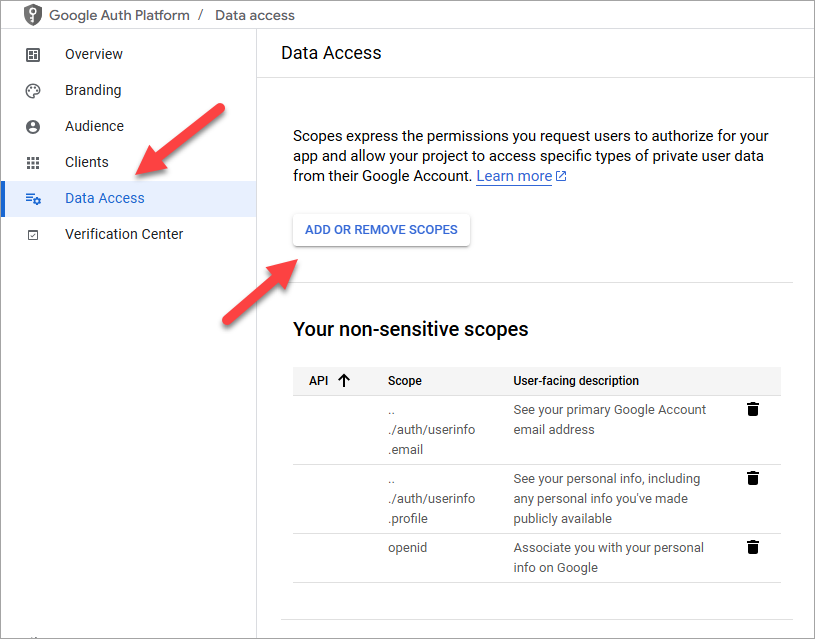
Step 3: Generate Your App Credentials
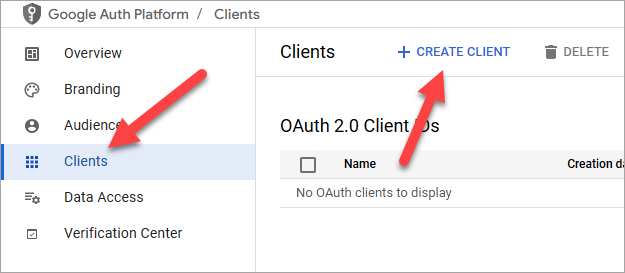
- In the left menu, select Clients, then click Create Client.
-
For Application type, select Web application. Name it after your organization.
- Under Authorized redirect URIs, click "Add URI" and paste the following exact link:
https://api.breadbutter.io/callback - Click Create.
- A window will pop up with your new Client ID and Client Secret. Keep this window open or copy these values somewhere safe, you need them for the next step.
Step 4: Link Your Credentials to Bread & Butter
- Log in to your Bread & Butter dashboard.
- Go to Settings in the left menu, then navigate to your Global Conversion Methods tab.
- Locate your Google connection and edit the settings to switch from Sandbox to Production Mode, then click Create New.
- Enter a custom name and description for your reference.
- Paste the Client ID and Client Secret you generated in Google.
- Click Save, and ensure the checkbox next to your new Google provider is enabled.
Step 5: Publish Your App
- Go back to your Google Cloud Console.
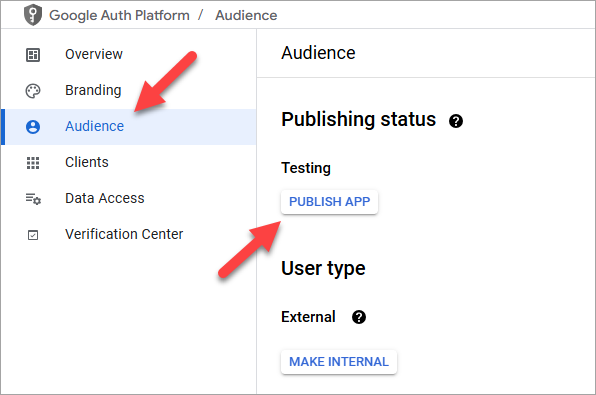
- In the left menu under APIs & Services, select Audience.
-
Click Publish App to push your app live and make it available to your visitors.
Final Polish: Complete Your White-Label Setup
You have successfully added your brand name to the Google consent screen! However, visitors may still see breadbutter.io listed in the URL routing during the connection process.
To completely remove our branding and keep visitors fully within your own domain ecosystem, navigate to the Custom Auth Domain tab in your Bread & Butter settings to set up your Custom Auth Domain.
- For more information, see: What is a Custom Auth Domain, and how do I set it up?