
Salesforce
The Bread & Butter + Salesforce Integration & Rules allow you to automatically add or update leads in Salesforce based on user activity. You can also enable session notes to track when users visit and leave your website, giving your sales team real-time visibility into prospect engagement.
Step 1: Connect Salesforce
To set up the integration, you need to create a Connected App in Salesforce to generate your Consumer Key and Secret, and then enter them into Bread & Butter along with your Salesforce URL.
1. Create External Client App in Salesforce
- Log in to your Salesforce Developer site.
- Click your account icon at the top right and select My Developer Account.
- Note: If you don't see this, proceed to the next step. You may need to authenticate again.
-
Click the Settings (gear) icon at the top right and select Setup.
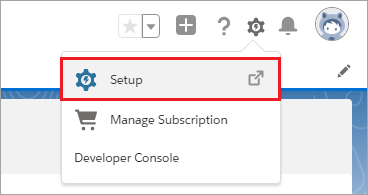
- In the left menu, go to Platform Tools > Apps > External Client Apps > External Client App Manager.
- At the top right, click New External Client App.
- Enter your Basic Information:
- For the External Client App Name, we recommend using your organization or company name.
- Enter your Contact Email.
- For Distribution State, select Local.
- Expand API (Enable OAuth Settings):
- Check Enable OAuth Settings.
- For Callback URL, enter
https://api.breadbutter.io/integration_callback - For Selected OAuth Scopes: Add the following scopes:
Access unique user identifiers (openid)Manage user data via APIs (api)-
Perform requests at any time (refresh_token, offline_access)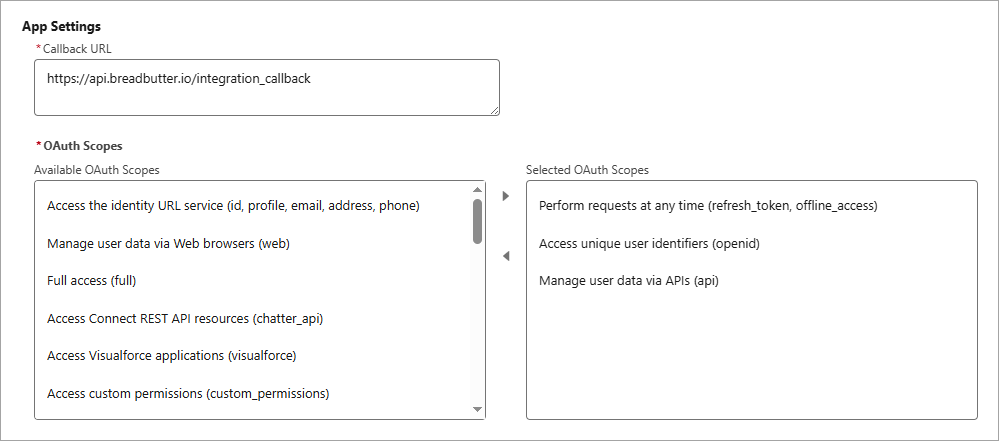
-
Check Configure ID Token.
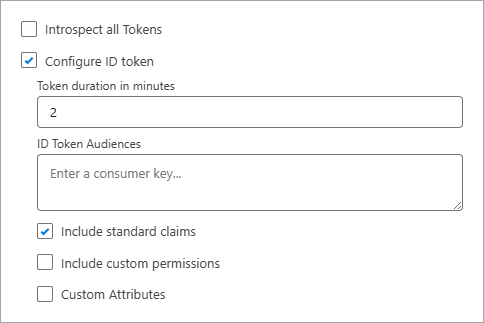
- Check Include Standard Claims.
- Click Create.
- Note: It may take 2-10 minutes for the changes to take effect.
2. Get Credentials
- Click on the Settings tab in the middle of the page.
- Expand OAuth Settings, and then click on Consumer Key and Secret.
- Copy and save the Consumer Key and Consumer Secret.
- Get Salesforce URL: Click your Profile icon at the top right and copy your domain URL (e.g.,
https://yourdomain.my.salesforce.com).
3. Adjust Refresh Token Policy
- Return to the Policies tab in the middle of the page, then click the Edit button.
- Expand OAuth Policies, and set Refresh Token Policy to:
-
Refresh token is valid until revoked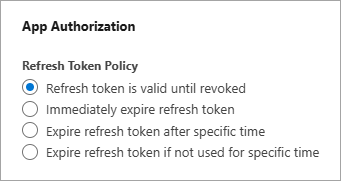
-
- Click Save.
4. Add to Bread & Butter
- Log in to your Bread & Butter Dashboard.
- Click Automation in the left menu, then go to the Cloud Integrations tab.
- Under the Cloud Integrations section, click Create New, then choose the Salesforce logo to create a new integration.
- Enter a Name for the integration (optional, the default name will be 'Salesforce').
- Paste the Consumer Key and Consumer Secret.
- Enter your Salesforce URL.
- Important: Ensure you include
https://at the beginning. - Enable Session Notes (Optional):
- Add note on session open: Adds a chatter post when a user arrives on your site.
- Add note on session close: Adds a summary post when they leave.
- Click Connect Salesforce.
- Follow the popup instructions to authenticate and allow access.
- Once returned to Bread & Butter, click Save & Close.
Step 2: Set up Rules
Once connected, you need to create a Rule to determine when data is sent to Salesforce.
- Click Automation > Integrations on the left side menu.
- Select the HubSpot Integration you created in Part 1.
- Under the Rules section, choose the Filter Conditions that will trigger this rule (e.g., EVENT: Email Verified, LEAD SCORE: 6,7,8,9,10). You can manually refine the filter condition, or pick from the pre-configured filters that were previously saved for your account.
- Enter a descriptive Name for the rule (e.g., 'Leads').
- Map Fields: If adding a contact: Map the Bread & Butter data fields to the corresponding Salesforce fields using the drop-down provided.
- You will see options to map Bread & Butter data fields to your Salesforce Lead fields.
- Select which Bread & Butter data points (e.g., Email, Company, UTM Source) should populate specific fields in Salesforce.
- For a full list of fields, see Field Mapping Definitions.
- Click Save & Close.
Your integration is now live! When the event occurs, the user will be added or updated in Salesforce.
Feature: Session Start and End Notes
With Bread & Butter, you can track user activity directly within Salesforce Chatter.
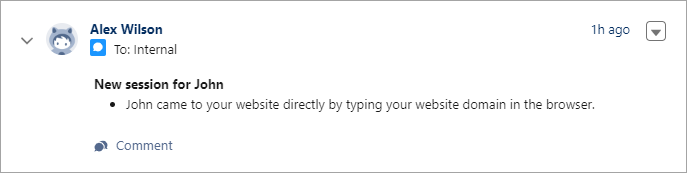
- Session Start: When a user visits your site, Bread & Butter checks if they exist in Salesforce. If found, it posts a note to their Chatter feed indicating they are active:
- Session End: When the user leaves, a summary note is posted detailing their visit:
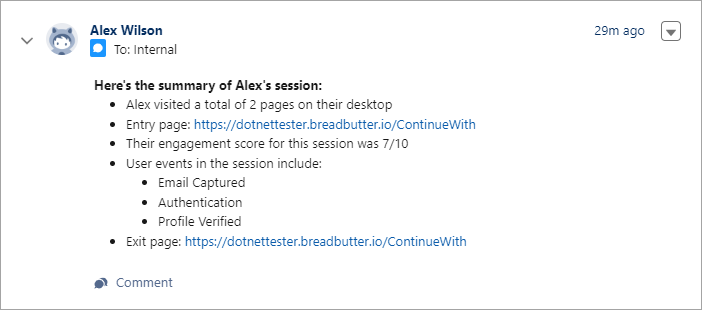
This allows your sales team to see exactly when leads are engaging with your content without leaving Salesforce.
Feature: Salesforce Field Mapping
You can map detailed analytics data from Bread & Butter directly into Salesforce fields (standard or custom). This captures critical marketing data like UTM parameters, location, and device info automatically.
- User Info: Email, First Name, Last Name, Profile Image, Company
- Marketing Data: Referrer, UTM Source/Medium/Campaign/Term/Content
- Location: City, State/Province, Country, IP Address, ISP
- Tech: Operating System, Device Type, Browser
- Activity: Page View URL, Page Title, Event Name/Date
How it works: When creating a Rule, Bread & Butter fetches all available Lead fields from your Salesforce account. Simply use the dropdown menus to match the Bread & Butter data point on the left to the Salesforce field on the right.