
Google Sheets
The Bread & Butter + Google Sheets integration allows you to automatically add user data to a Google Sheet whenever specific events occur on your website. For example, you can add new conversions to a "New Leads" spreadsheet or log specific user journey milestones by updating an existing record.
Step 1: Set up Google Cloud Project
To connect Bread & Butter to Google Sheets, you need to create a project in Google Cloud, enable the Sheets API, and generate a Service Account key.
1. Create Project & Enable API
- Log in to the Google Cloud Console.
- Click the project dropdown at the top and select New Project.
- Enter a Project Name and select your Organization and Location. Click Create.
- Ensure your new project is selected in the top dropdown.
-
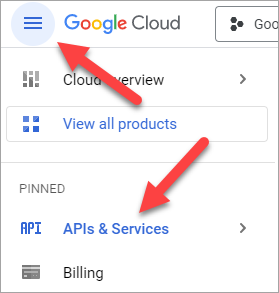
In the left menu, go to APIs & Services.
-
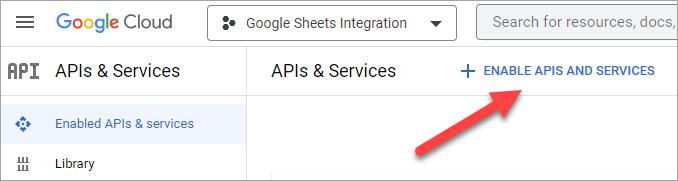
Enable APIs and Services
-
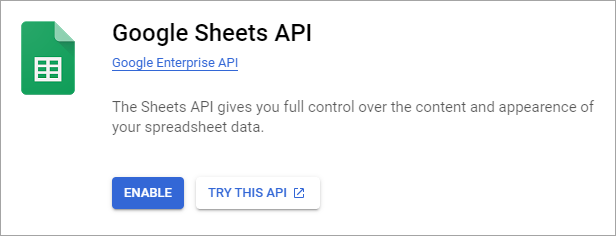
Under Google Workspace, click Google Sheets API.
-
Click Enable.
2. Create Service Account & Key
-
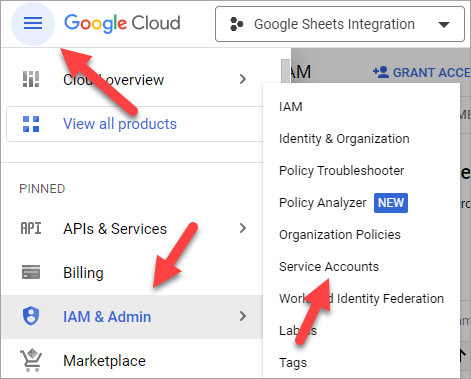
In the left menu, go to IAM & Admin > Service Accounts.
- Click + Create Service Account at the top.
- Enter a Service account name (e.g., "breadbutter-sheets") and click Create and Continue.
-
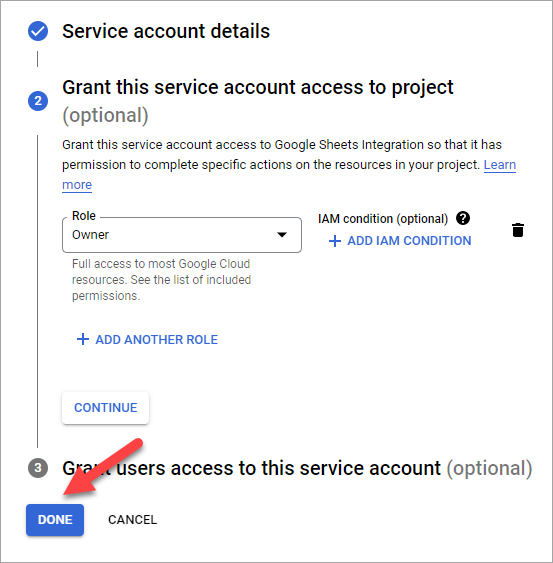
In the Select a role dropdown, choose Owner (or a role with sufficient Sheets access) and click Continue, then Done.
-
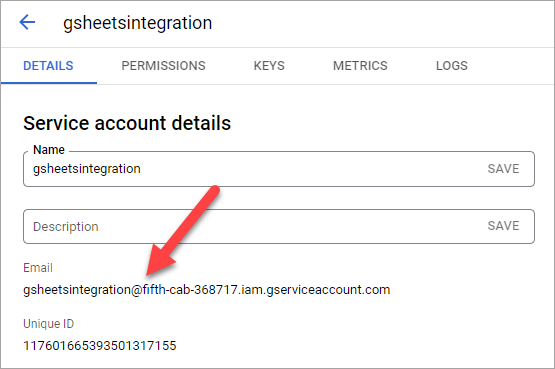
Click on the newly created service, copy and store the service account email address for the Rules setup below.
-
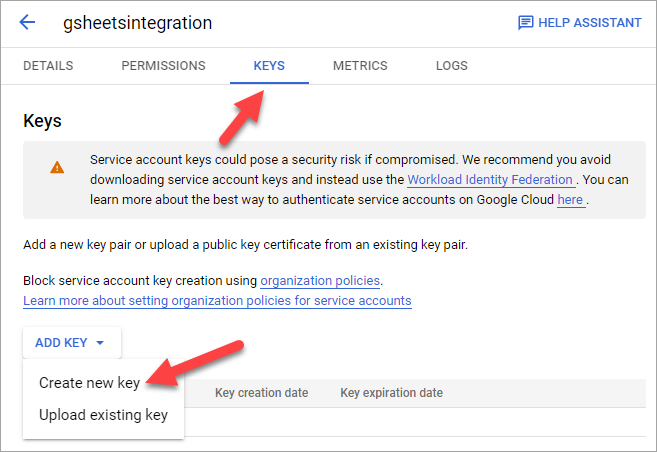
Go to the Keys tab and click Add Key > Create new key.
- Select JSON and click Create.
- A JSON file containing your key will automatically download to your computer. Keep this file safe.
- Important: Copy the Service account email (e.g.,
breadbutter-sheets@project-id.iam.gserviceaccount.com). You will need this later to share your sheet.
Step 2: Connect Integration in Bread & Butter
- Log in to your Bread & Butter Dashboard.
- Click Automation in the left menu, then go to the Cloud Integrations tab.
- Under the Cloud Integrations section, click Create New, then choose the Google Sheets logo to create a new integration.
- Enter a Name for the integration (optional, the default name will be 'Google Sheets').
- Open the JSON file you downloaded in Part 1. Copy the entire content and paste it into the Google Sheets JSON file data field.
- Click Save & Close.
Part 3: Prepare Your Spreadsheet
Before setting up the rule, you must create the sheet and grant access to the service account.
- Open Google Sheets and create a new spreadsheet (or open an existing one).
- Note: Avoid using sheet tab names that look like cell references (e.g., 'Tab1', 'Ark1'). Use descriptive names like 'Leads' or 'Signups.
- Add Headings to the first row (e.g., First Name, Last Name. Email Address, Date).
- The integration comes with a default field mapping, it is recommended you use this setting.
- For a full list of fields, see Field Mapping Definitions.
- Click the Share button at the top right.
- Paste the Service account email you copied in Step 1.2.e.
- Ensure the permission is set to Editor.
- Uncheck "Notify people" and click Share.
- Copy the Spreadsheet ID from the URL.
- The ID is the long string of characters between
/d/and/edit - Example:
docs.google.com/spreadsheets/d/1BxiMVs0XRA5nFMdKvBdBZjgmUUqptlbs74OgvE2upms/edit
- The ID is the long string of characters between
Part 4: Set up Rules
Now, define when data should be sent to this sheet.
- Go to Automation > Integrations in Bread & Butter.
- Select the Google Sheets Integration you created in Part 2.
- Under the Rules section, choose the Filter Conditions that will trigger this rule (e.g., EVENT: Email Verified, LEAD SCORE: 6,7,8,9,10). You can manually refine the filter condition, or pick from the pre-configured filters that were previously saved for your account.
- Enter a descriptive Name for the rule (e.g., 'Leads').
- Paste the Spreadsheet ID you copied in Part 3.
- Enter the Sheet Name (the name of the tab at the bottom, e.g., 'Leads').
- Click Get Mappings.
- Bread & Butter will fetch the header row from your sheet.
- Map the Bread & Butter data fields to your corresponding sheet columns.
- Click Save & Close.
Your integration is now live! When the event occurs, a new row will be added to your Google Sheet.