
Slack
The Slack integration allows you to send user profiles and event notifications directly to a specific Slack channel. For example, you can notify your sales team immediately when a conversion happens or alert support when a user visits a specific help page.
Step 1: Connect Slack
To set up the integration, you need to create a Slack App to generate an API Token and then enter it into Bread & Butter.
1. Create a Slack App
- Log in to your management or developer account at Slack.
- Click Your Apps, then click Create an App.
-
Select Blank app.
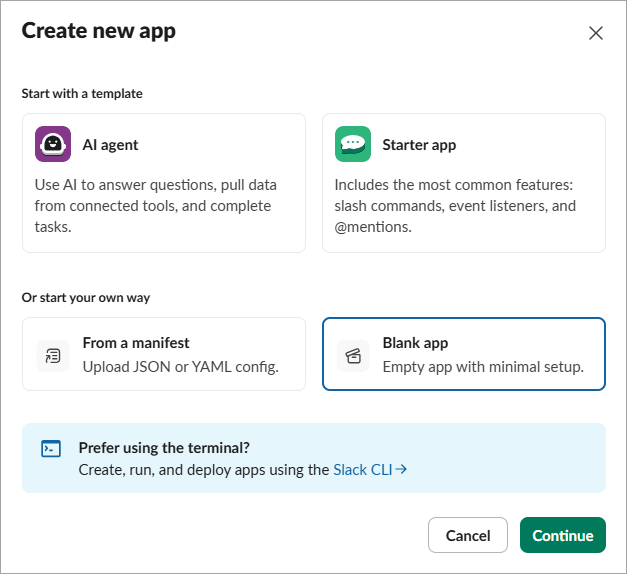
- Enter an App Name (e.g., "Bread & Butter Bot") and select your company's Workspace.
- Click Create.
2. Configure Permissions
-
In the left sidebar menu, select OAuth & Permissions.
Scroll down to the Scopes section.
Under Bot Token Scopes, click Add an OAuth Scope.
Type in
chat:write.publicand select it.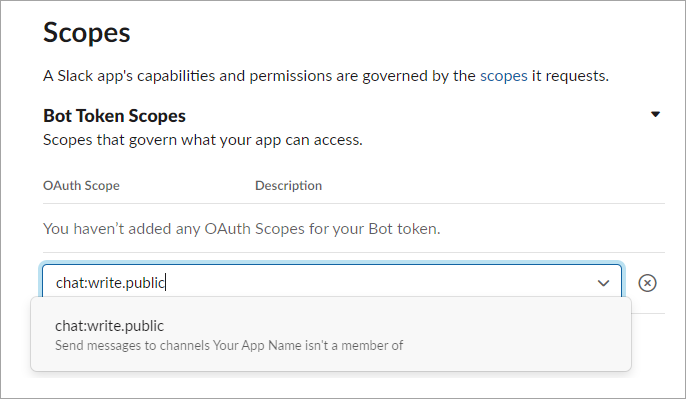
- Note: You may be prompted to add
chat:writeas well. Click Add Scopes to confirm.
- Note: You may be prompted to add
3. Install & Get Token
- Scroll up to the top of the OAuth & Permissions page.
- Click Install to Workspace.
- Click Allow to authorize the app.
- Copy the Bot User OAuth Token (it usually starts with
xoxb-).
4. Add to Bread & Butter
- Log in to your Bread & Butter Dashboard.
- Click Automation in the left menu, then go to the Cloud Integrations tab.
- Under the Cloud Integrations section, click Create New, then choose the Slack logo to create a new integration.
- Enter a descriptive Name (Note: This name will appear as the Bot user in Slack).
- Paste the API Token you generated in the previous steps.
- Click Save & Close.
Part 2: Set up Rules
Once connected, you need to create a Rule to tell Bread & Butter which channel to message and when.
- Click Automation > Integrations on the left side menu.
- Under the Rules section, click Create New.
- Select the Slack Integration you created in Step 1.
- Choose the User Event or System Event that will trigger this rule (e.g., "Verified Profile").
- Enter a Name for the rule.
- Enter the Slack Channel where you want the information sent (e.g.,
#sales-leadsor#general). - Click Save & Close.
Your integration is now live! When the event occurs, a notification with the user's details will be sent to your specified Slack channel.