
Salesforce
Need a hand? Setting up developer credentials can sometimes feel a bit overwhelming. We offer a complimentary 15-minute onboarding session to help you get this configured perfectly. Book your session with a specialist here
When you first install Bread & Butter, the Salesforce 1-click connection may not display your own branding during the connection process if it is not fully configured for your domain.
To maximize user trust and prevent conversion drop-off, you must set up a Connected App in the Salesforce Developer portal. This allows you to generate your own credentials so your audience sees your brand when they click "Continue with Salesforce."
Here is how to set it up in six steps.
Step 1: Access Your Salesforce Developer Setup
- Log in to the Salesforce Developer website.
-
Click on your account icon at the top right of the page and select My Developer Account.
(If you don't see this option, skip to the next step. Note: You may be asked to authenticate again.)
- Click on the gear/settings icon at the top right of the page and select Setup.
Step 2: Create a New Connected App
-
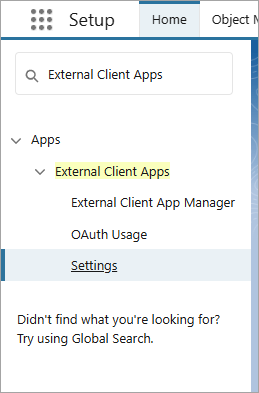
In the search bar in the left menu, enter External Client Apps, then select Settings.
-
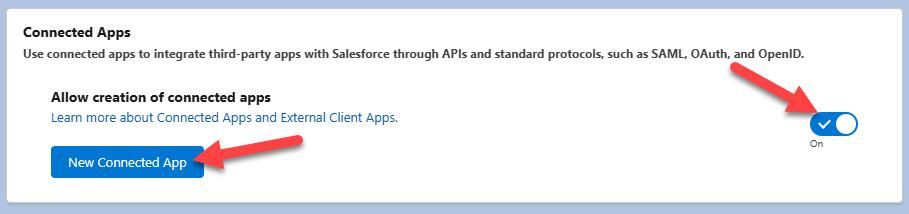
Ensure Enable Connected Apps is toggled on, then click New Connected App.
- Enter your contact information. For the name of your application, we highly recommend using your exact organization or company name, as this is what will appear to users during the login process.
Step 3: Configure OAuth Settings & Scopes
This ensures Salesforce correctly routes your users back to your website and requests the proper authentication data.
- Under API (Enable OAuth Settings), check the Enable OAuth Settings option.
- For the Callback URL, paste the following exact link:
https://api.breadbutter.io/callback - Under Selected OAuth Scopes, select and add Access unique user identifiers (openid).
⚠️ Important: If you intend to capture the user's Access Token by enabling "Authorization Data" in Bread & Butter, you must also add the scope for Perform requests at any time (refresh_token, offline_access). If you do not add this scope, Salesforce will block your users from logging in.
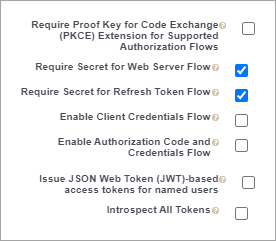
- Uncheck the option for Require Proof Key for Code Exchange (PKCE) Extension for Supported Authorization Flows.
-
Check the Configure ID Token option, which will reveal more settings. Also check the Include Standard Claims option.
- Click Save, then click Continue.
Step 4: Generate Your App Credentials
- Back under the API (Enable OAuth Settings) section, click the Manage Consumer Details button. (You may be prompted to confirm your account access here.)
- Locate your Consumer Key and Consumer Secret.
⚠️ Important: Copy and save both of these values. You will need them to connect Bread & Butter in the final step.
Step 5: Configure Refresh Token Policy (Optional)
Only complete this step if you enabled Authorization Data to use Access Tokens and Refresh Tokens.
- In the left menu, clear the search bar and navigate to Platform Tools > Apps > Connected Apps > Manage Connected Apps.
- Click Edit next to your App.
- Ensure that your Refresh Token Policy is not set to "expire immediately". Instead, set it to Refresh Token is valid until revoked, or choose an appropriate expiry timeframe that matches your internal security policies.
Step 6: Link Your Credentials to Bread & Butter
- Log in to your Bread & Butter dashboard.
- Go to Settings in the left menu, then navigate to your Global Conversion Methods tab.
- Locate your Salesforce connection and edit the settings to switch from Sandbox to Production Mode, then click Create New.
- Enter a custom name and description for your reference.
- Paste your Consumer Key into the Application (client) ID field.
- Paste your Consumer Secret into the Client Secret field.
- Click Save, and ensure the checkbox next to your new Salesforce provider is enabled.
Final Polish: Complete Your White-Label Setup
You have successfully added your brand name to the Google consent screen! However, visitors may still see breadbutter.io listed in the URL routing during the connection process.
To completely remove our branding and keep visitors fully within your own domain ecosystem, navigate to the Custom Auth Domain tab in your Bread & Butter settings to set up your Custom Auth Domain.
- For more information, see: What is a Custom Auth Domain, and how do I set it up?